

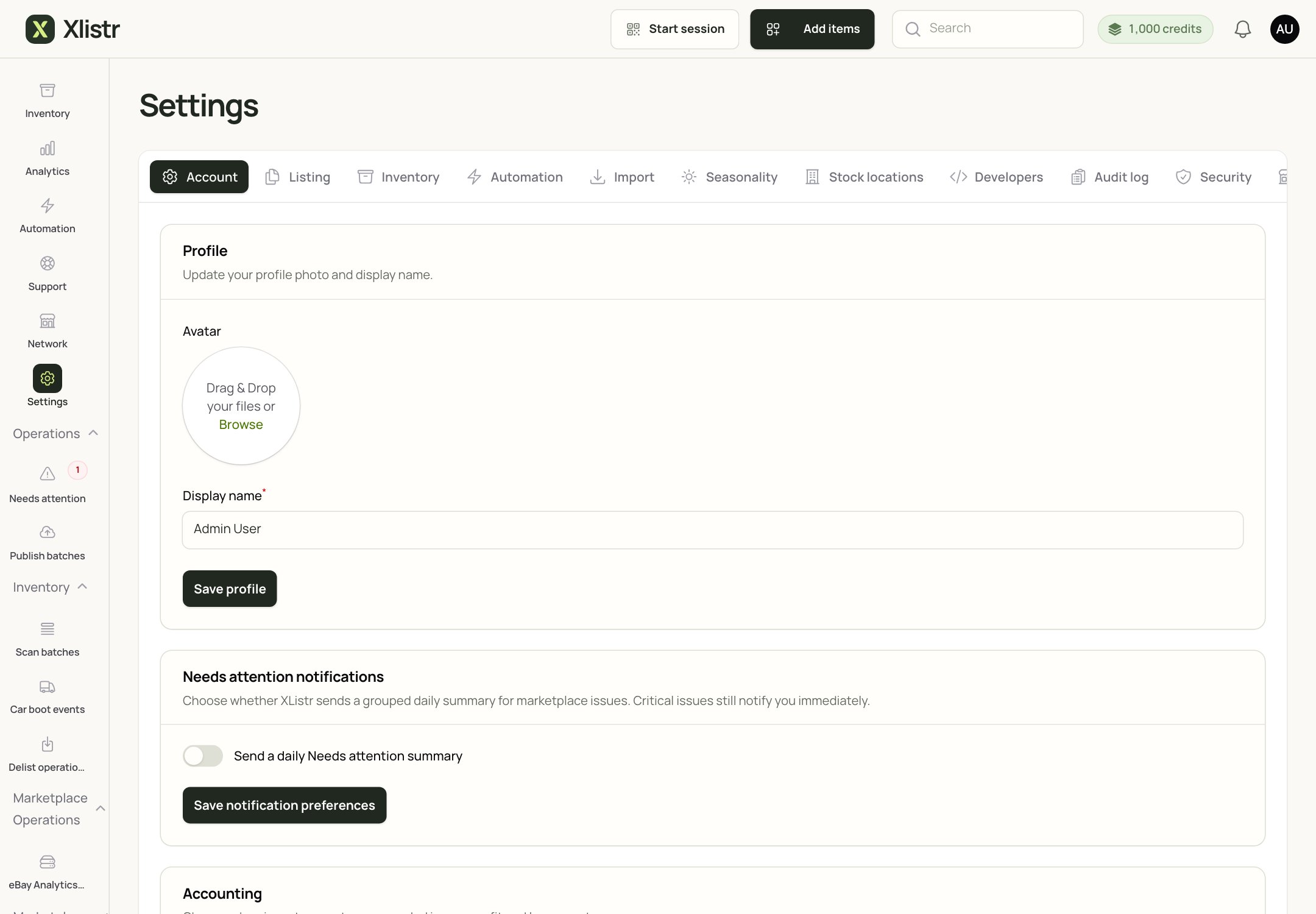
Settings has a Security tab for sign-in and access controls.
Secure your Xlistr sign-in
- Use a unique password that you do not use anywhere else.
- Enable two-factor authentication in Settings > Security when it is available.
- Never share a sign-in code with anyone, including support.
- Sign out of shared computers.
- Keep your email account secure; it is the recovery route for Xlistr.
Give teammates their own access
Do not share one login between several people. Invite each teammate with their own account.- Open Settings > Security or the team area shown in your workspace.
- Invite the teammate by email.
- Choose the smallest role that lets them do their job.
- Remove access when someone leaves.
Protect the Chrome profile used by the extension
The Xlistr Chrome extension works with the seller sessions in that browser profile. Treat that profile like a key to your shops.- Use your own Chrome profile, not a shared family or work profile.
- Lock your device when you step away.
- Do not install the extension on a computer you do not trust.
- Remove the extension and sign out of the marketplace if you sell the computer.
- Check
chrome://extensionsif you are unsure which extensions are installed.
Export before deleting an account
Download any data you need before requesting permanent deletion. Deletion cannot be undone.- Open Settings > Account.
- Find Your data.
- Click Download my data.
- Check that the download contains what you need.
- Only then request deletion.
What support will never ask for
Xlistr support will not need:- your marketplace password;
- your two-factor code;
- your card details;
- your bank login.
Common questions
How do I enable two-factor authentication?
How do I enable two-factor authentication?
Open Settings > Security and follow the instructions. If the option is not shown, your workspace or plan may not have it enabled yet.
A teammate left. What should I do?
A teammate left. What should I do?
Remove their access immediately. If they had the Chrome extension on a shared device, remove it and sign out of the marketplaces on that device.
Can I see who changed a listing?
Can I see who changed a listing?
Use the audit log in Settings > Audit log where it is available. It shows changes made in Xlistr, not changes made directly on the marketplace.
I think my account was accessed by someone else
I think my account was accessed by someone else
Change your Xlistr password, enable two-factor authentication, review team access, and check the audit log. Then contact support.
How do I delete my account?
How do I delete my account?
Export your data first, then use the deletion option in Settings > Account > Your data. Deletion is permanent.
Next steps
Plans and billing
Review your plan, invoices and AI credits.
Chrome extension
Set up the browser bridge safely.
Support
Find out what to include in a security request.
Glossary
Understand the words we use.