

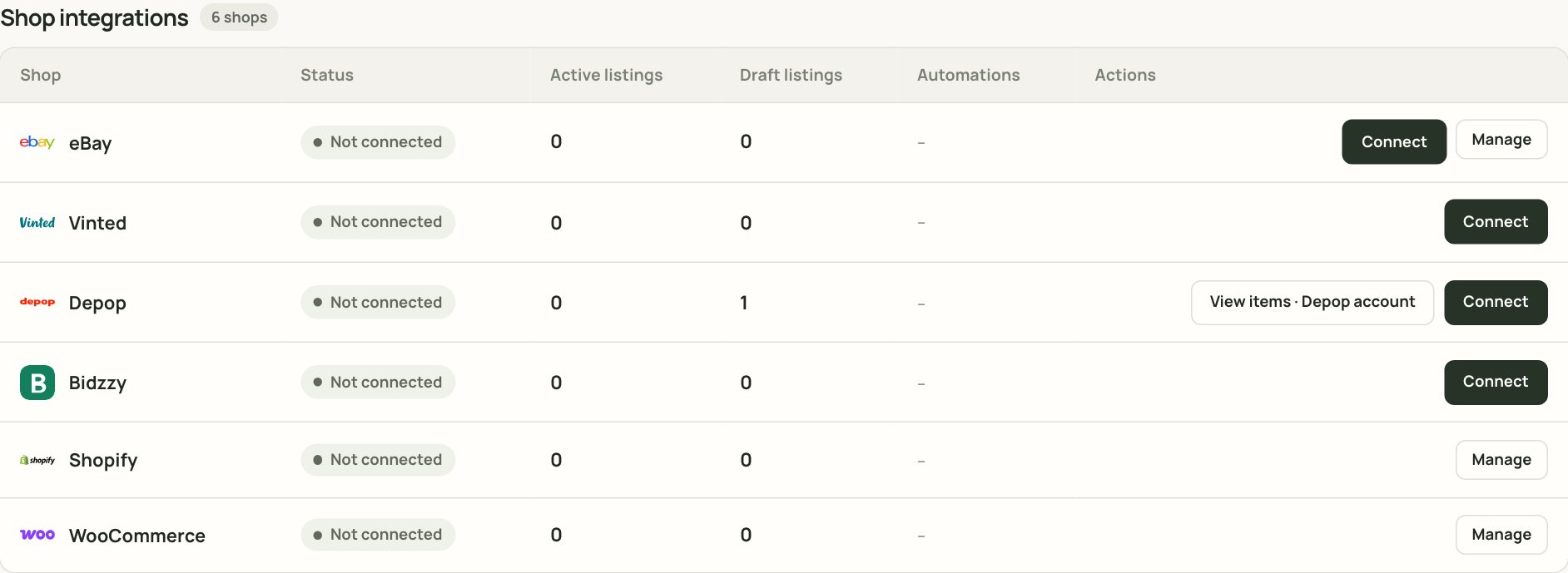
Shop integrations. Vinted will show a Connect or Reconnect button depending on the session.
What Vinted needs from you
- Chrome, on the computer where you list.
- The Xlistr Chrome extension installed and enabled.
- A signed-in Vinted account in the same Chrome profile.
- The extension pinned to the toolbar so you can check it quickly.
Connect Vinted
- Open Automation > Shop integrations.
- Find Vinted.
- Click Connect.
- Install the Xlistr Chrome extension if you have not already.
- Sign in to Vinted in the same Chrome profile.
- Open the Xlistr extension and click Connect or Sync if prompted.
- Return to Xlistr and check that Vinted says Connected.
Prepare a Vinted listing
- Add the item to Inventory.
- Open the item and choose the Vinted listing.
- Check the title, category, description, photos, price and quantity.
- Complete the Vinted fields.
- Choose the postage details.
- Review the checklist.
- Save a draft or publish.
Vinted titles and descriptions
- Keep the title clear and specific.
- Mention the brand, size and condition.
- Put the flaws in the description, not just the photos.
- Use the Vinted category that fits the item.
- Check the Vinted field names; they may differ from eBay.
Vinted photos
- Use natural light.
- Show the label and any flaws.
- Keep the first photo clean and clear.
- Check Vinted’s image limits before uploading a large set.
Vinted postage
Vinted often uses its own postage options. Choose the service that matches the parcel and the buyer’s location. If you are unsure, check the Vinted help pages for the current options.How stock sync works
Vinted is usually a single-unit channel. When the item sells, Xlistr can update the inventory and delist the other marketplace listings. The sync depends on the extension being online. If Chrome is closed or the Vinted session expired, the update waits.Vinted actions can take a little time. The extension polls for sales and updates. If you need to stop a double sale immediately, delist the other listings manually.
Delist or edit a Vinted listing
- To edit, open the listing in Xlistr and change the details.
- To delist, use Delist on the Vinted listing or Delist everywhere on the item.
- Delisting does not delete the inventory item.
Common Vinted problems
It says 'Waiting for the extension'
It says 'Waiting for the extension'
Open Chrome, check that the Xlistr extension is enabled, and sign in to Vinted in the same profile. Then return to Xlistr and check whether the action resumes.
Vinted says 'Needs reconnecting'
Vinted says 'Needs reconnecting'
Open Shop integrations, find Vinted and click Reconnect. Complete the Vinted sign-in in the same Chrome profile.
Vinted asks for a captcha
Vinted asks for a captcha
Complete the captcha yourself in the Vinted window. Xlistr cannot solve it for you. Once Vinted is happy, return to Xlistr and retry.
The listing is live on Vinted but Xlistr says failed
The listing is live on Vinted but Xlistr says failed
Check the Vinted listing first. If it exists, do not publish again. Wait for the sync, then refresh the item. If it stays wrong, contact support with the Vinted item link.
The photos are in the wrong order
The photos are in the wrong order
Reorder them in the listing. The first photo is usually the one buyers see in search.
The item sold on Vinted but eBay is still live
The item sold on Vinted but eBay is still live
Check the eBay connection and your auto-delist settings. If the sale was not confirmed, Xlistr may not have started the follow-up. Delist eBay manually if you need to stop a double sale.
I changed to a different Chrome profile
I changed to a different Chrome profile
The extension and the Vinted login must be in the same profile. Switch back to the profile where you installed Xlistr, or install it again in the new profile and reconnect.
Next steps
Install the Chrome extension
Set up the browser bridge properly.
Depop guide
Crosslist the same item to Depop.
Auto-delist and restock
Understand what happens after a Vinted sale.
Fix marketplace errors
Work through the exact Vinted error.