

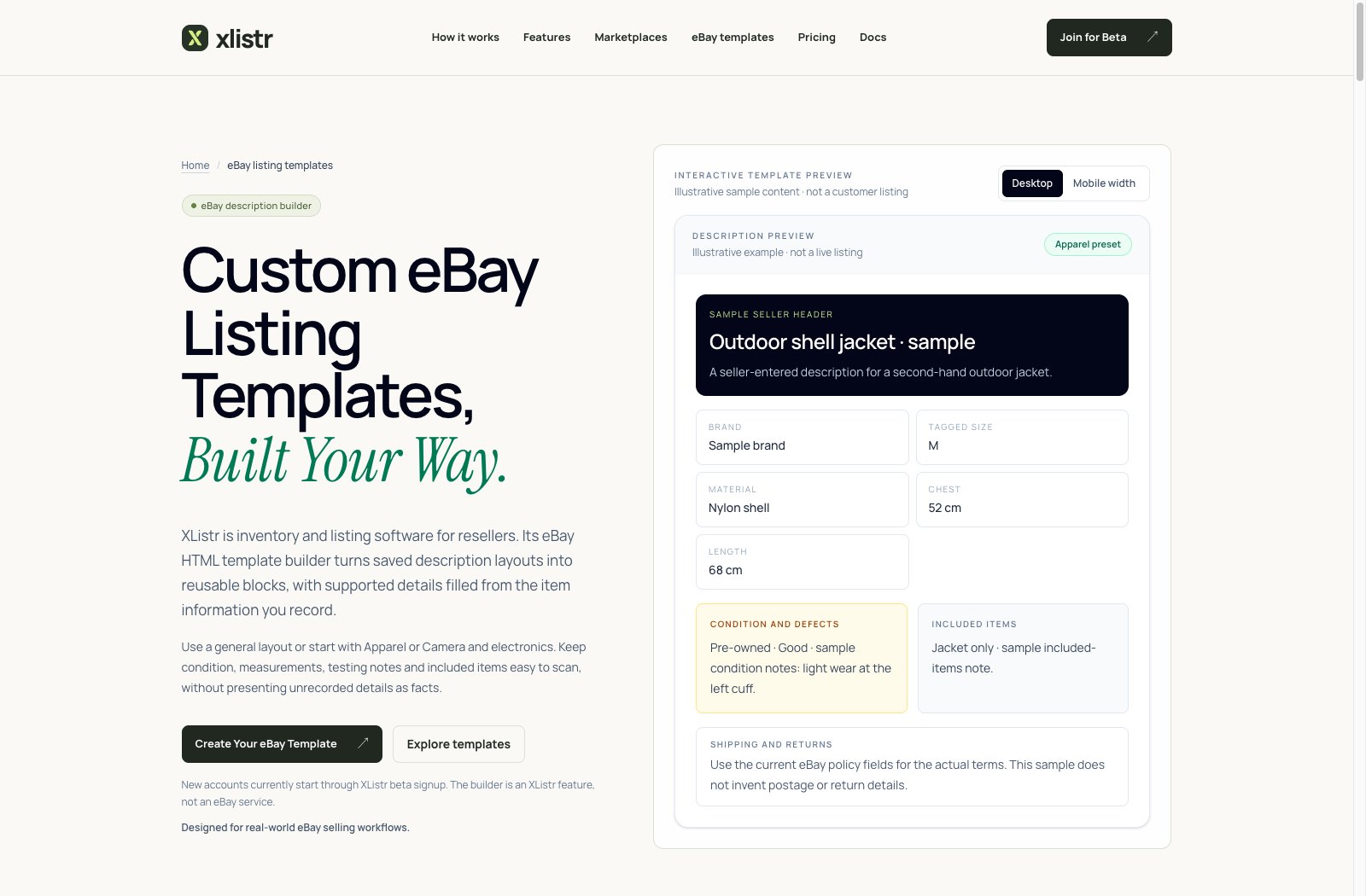
An illustrative eBay description template preview with sample content. Your builder and available fields can vary by account.
Do you need a template?
Use a template if:- you sell the same kind of items repeatedly;
- you want a consistent layout with your shop name, policies and measurements;
- you want to insert item specifics or measurements automatically;
- you are comfortable checking a preview before publishing.
- you are still learning the basics;
- you only sell a few items;
- you would rather write each description by hand.
Choose a layout
For a connected account with HTML descriptions enabled, choose one of these:- Automatic — use the account’s category rules and defaults.
- None — a clean, plain description.
- A saved template or preset — your own reusable layout.
Insert variables
Choose Insert variable to search available fields. The picker shows the source and an example value for each field. Common groups include:- product details;
- condition;
- measurements;
- item specifics;
- policies;
- related listings;
- video;
- seller details;
- custom fields.
Item specifics must come from values already synced from eBay or confirmed for the item. Category metadata describes which fields are available; it is not evidence of the item’s attributes. The template changes the description layout only.
Preview before saving
Preview the current item or sample values at desktop and mobile widths.- Use Show raw HTML to inspect the rendered source.
- Use View clean text to check the readable description.
- Resolve missing-variable and prohibited-markup warnings before you set a default.
Set account defaults
- Open Settings > eBay > eBay Description HTML.
- Select the connected account.
- Choose the HTML opt-in, default template, fallback template and automatic category selection.
- Save.
eBay content restrictions
Do not add:- scripts or event handlers;
- forms;
- arbitrary frames;
- third-party storefront links;
- autoplay video players.
Common problems
The preview is blank
The preview is blank
Check that the template has content and that the selected item has the values the template expects. A template full of optional fields can look empty on a sparse item.
A variable is missing
A variable is missing
Check the field name and whether the item has a value. Use a conditional section or a fallback so the description still reads well when a value is missing.
eBay rejected the description
eBay rejected the description
Remove scripts, forms, frames and prohibited links. Check the raw HTML for anything eBay does not allow, then preview again.
I changed the template but the live listing looks the same
I changed the template but the live listing looks the same
Saving a template does not update live listings. Open the listing and publish a revision if you want the new layout applied.
The description looks different on mobile
The description looks different on mobile
Preview at both widths. Some layouts that look fine on desktop are too wide or too small on a phone.
Next steps
Templates and bulk listing
Reuse listing defaults across several items.
eBay guide
Understand the rest of the eBay listing flow.
Shipping and listing details
Complete the fields eBay requires.
Fix listing errors
Work through eBay rejection messages.