

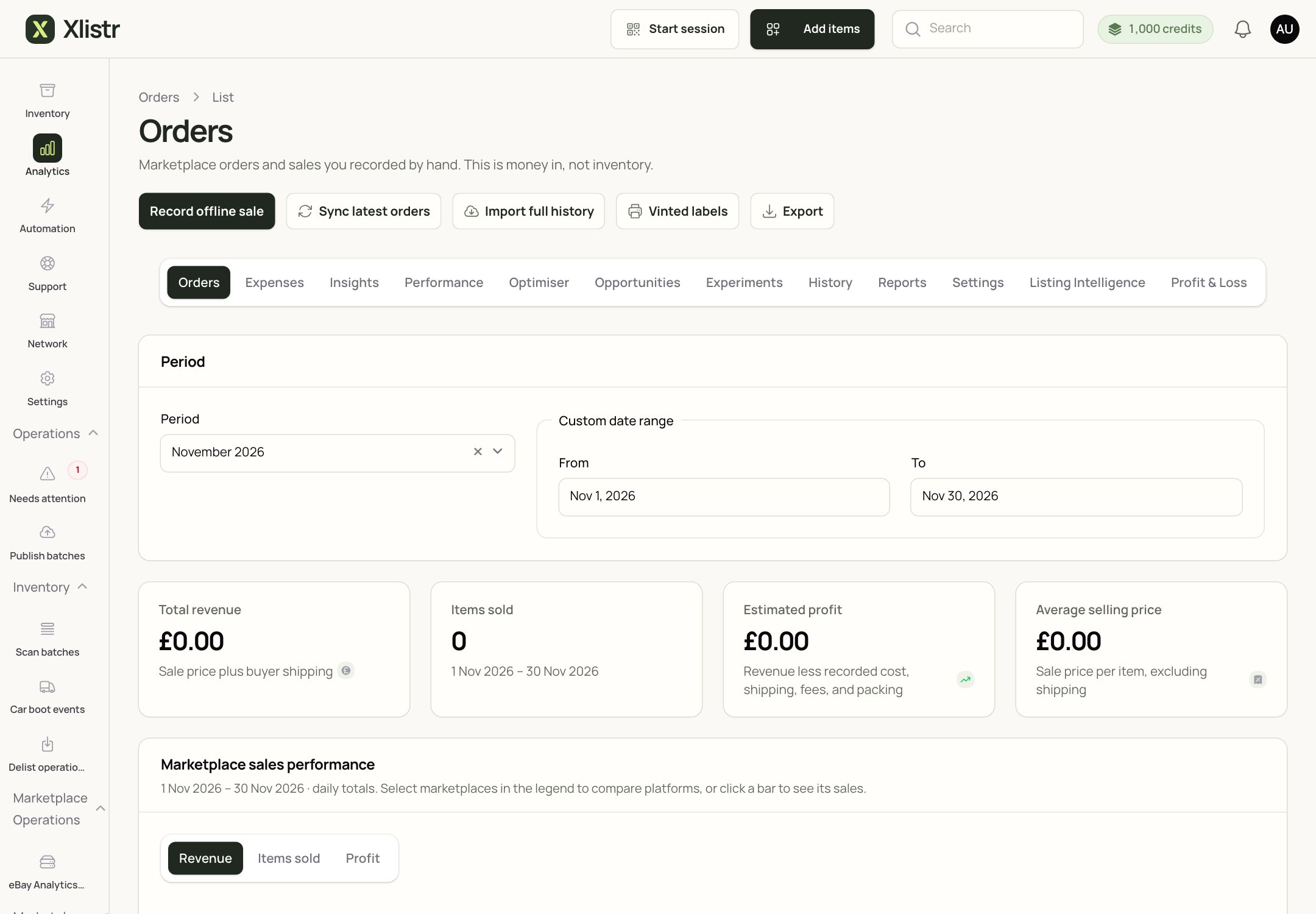
The Orders area of Analytics. Use the period selector to choose the dates you want to review.
The figures you may see
The exact definitions differ between marketplaces. Treat the figures as a guide, not an audit.
How to read the figures
- Performance values are recorded as dated snapshots. They are not a record of every view or click.
- A change between snapshots shows what the counter did during that period. It does not explain why.
- Listing-version history can help you compare timing, but it cannot prove that a title, photo or price change caused a sale.
- A missing value is not zero. It means the marketplace did not provide it.
Use these metrics as context for your own decisions. Do not treat a missing value as zero or infer a cause that the marketplace did not report.
A simple way to review a listing
- Pick a period, such as the last 30 days.
- Look at views and watchers first. They tell you whether people are finding the item.
- If views are low, the title, photos or category may need work.
- If views are high but sales are low, the price, postage or description may need work.
- Change one thing at a time, then compare the next period.
What Xlistr cannot tell you
- Why a buyer chose not to buy.
- Whether a view came from a real buyer or a bot.
- Whether a sale was caused by a specific change.
- Whether a marketplace’s figures are complete.
Common problems
The figures are blank
The figures are blank
The marketplace may not provide that metric for your account, or the sync may not have run yet. Check the connection and wait for the next sync.
The figures have not changed
The figures have not changed
Some marketplaces update performance data on a delay. Check the marketplace directly if you need a live number.
The revenue does not match my bank
The revenue does not match my bank
Xlistr records the sale amount it receives. Marketplace fees, refunds, postage adjustments and payouts can change the final amount. Reconcile against the marketplace statement.
A sale is missing
A sale is missing
Check whether the marketplace has reported it, whether the connection was healthy when the sale happened, and whether the order is in Analytics > Orders. For extension shops, check that Chrome and the extension were available.
Next steps
Sales, costs and profit
Review orders, expenses and profit in more detail.
Offers and refresh
Decide whether a price change or refresh is worth it.
Background actions
Understand why performance data may lag.
Fix marketplace errors
Work through connection and sync errors.