

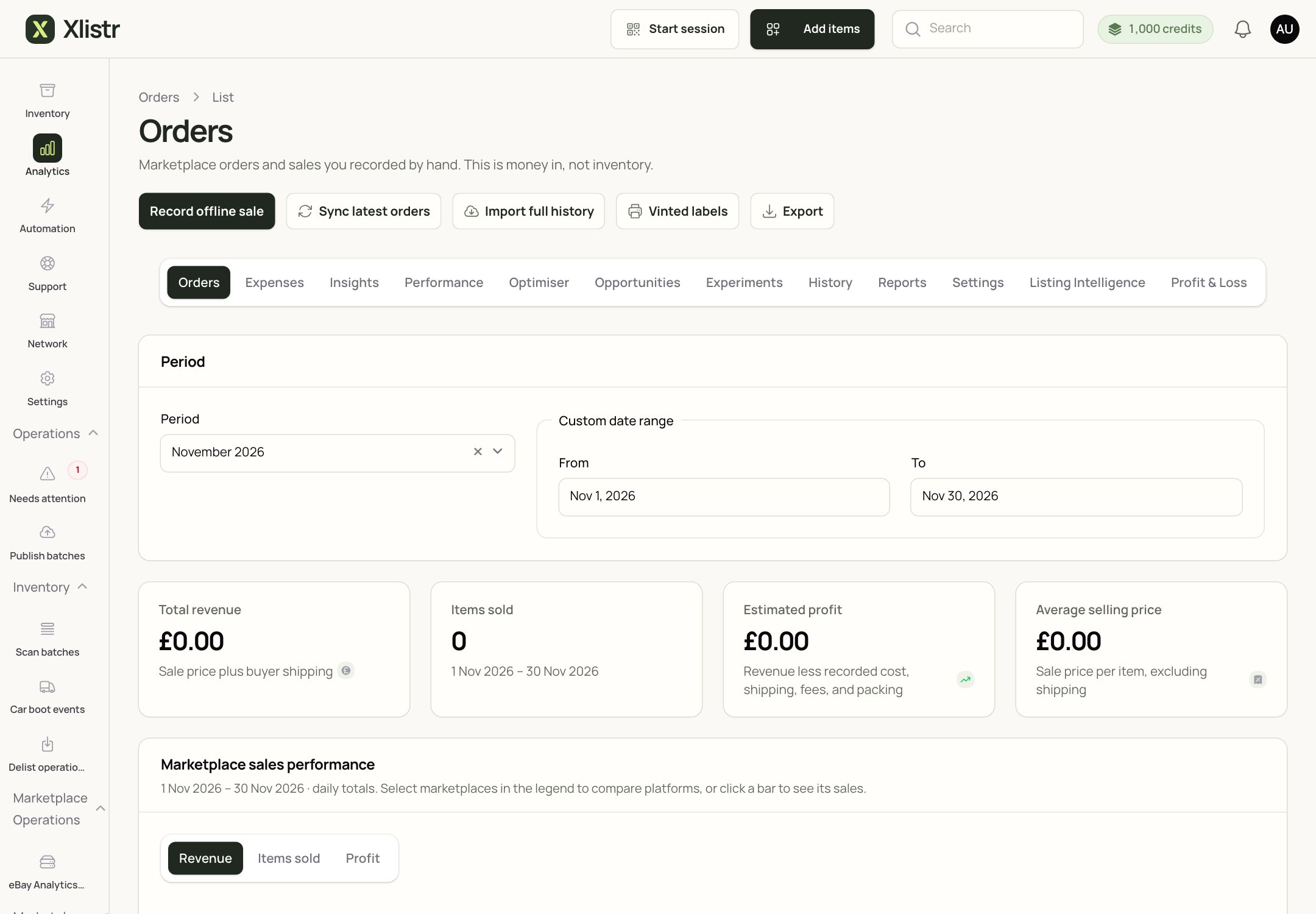
The Orders area of Analytics. The period selector controls the figures below.
The tabs
You do not need to use every tab. Start with Orders, Expenses and Profit & Loss.
Review an order
- Open Analytics > Orders.
- Choose the period.
- Open the order.
- Check the item, marketplace, sale date and recorded amount.
- Confirm that the order matches the inventory item you expected.
Review costs separately
Open Expenses and Profit & Loss.- Item cost is what you paid for the stock.
- Fees are the marketplace’s charges.
- Postage is what you paid to send the item.
- Packing is the cost of boxes, bags and labels.
- Other expenses are the costs of running the business.
Export a working copy
Use an available export, such as the accounting CSV, to prepare a bookkeeping copy. Then reconcile it against:- the marketplace’s statements;
- your bank or payment provider;
- your own receipts.
What is recorded vs estimated
A profit figure is only as good as the costs you enter. If the cost of goods is blank, Xlistr cannot show a true profit for that item.
Common problems
A sale is missing
A sale is missing
Check whether the marketplace has reported it and whether the connection was healthy when the sale happened. For extension shops, check that Chrome and the extension were available. You can also record an offline sale by hand.
The profit looks too high
The profit looks too high
Check the cost of goods, fees, postage and packing. A missing cost is the most common reason.
The profit looks too low
The profit looks too low
Check for duplicate expenses or an estimated fee that is higher than the final fee. Reconcile against the marketplace statement.
The export does not match my bank
The export does not match my bank
The export may use the sale date, while your bank uses the payout date. Check the period and the payment provider’s timing.
I need to record a sale I made in person
I need to record a sale I made in person
Use Record offline sale in Analytics > Orders. Choose the item, the amount and the payment method.
Next steps
Listing performance
See how individual listings are performing.
Auto-delist and restock
Understand the stock side of a sale.
Plans and billing
Review your plan, invoices and AI credits.
Support
Find out what to include when a figure looks wrong.