

Templates
A template is a reusable set of listing defaults. Depending on the marketplace, it can hold things like:- a description layout;
- default marketplaces;
- a postage profile;
- category or account rules;
- reusable text snippets.
Create a listing template
- Open Settings.
- Click the Listing tab.
- Find Listing templates.
- Click Create.
- Give the template a clear name, such as “Standard eBay clothing”.
- Add the defaults you want to reuse.
- Save.
Review the template values on every item. Price, condition, category and postage can differ between items, even when the template fits.
Bulk listing existing inventory
If you already have items in Inventory, you can prepare several at once.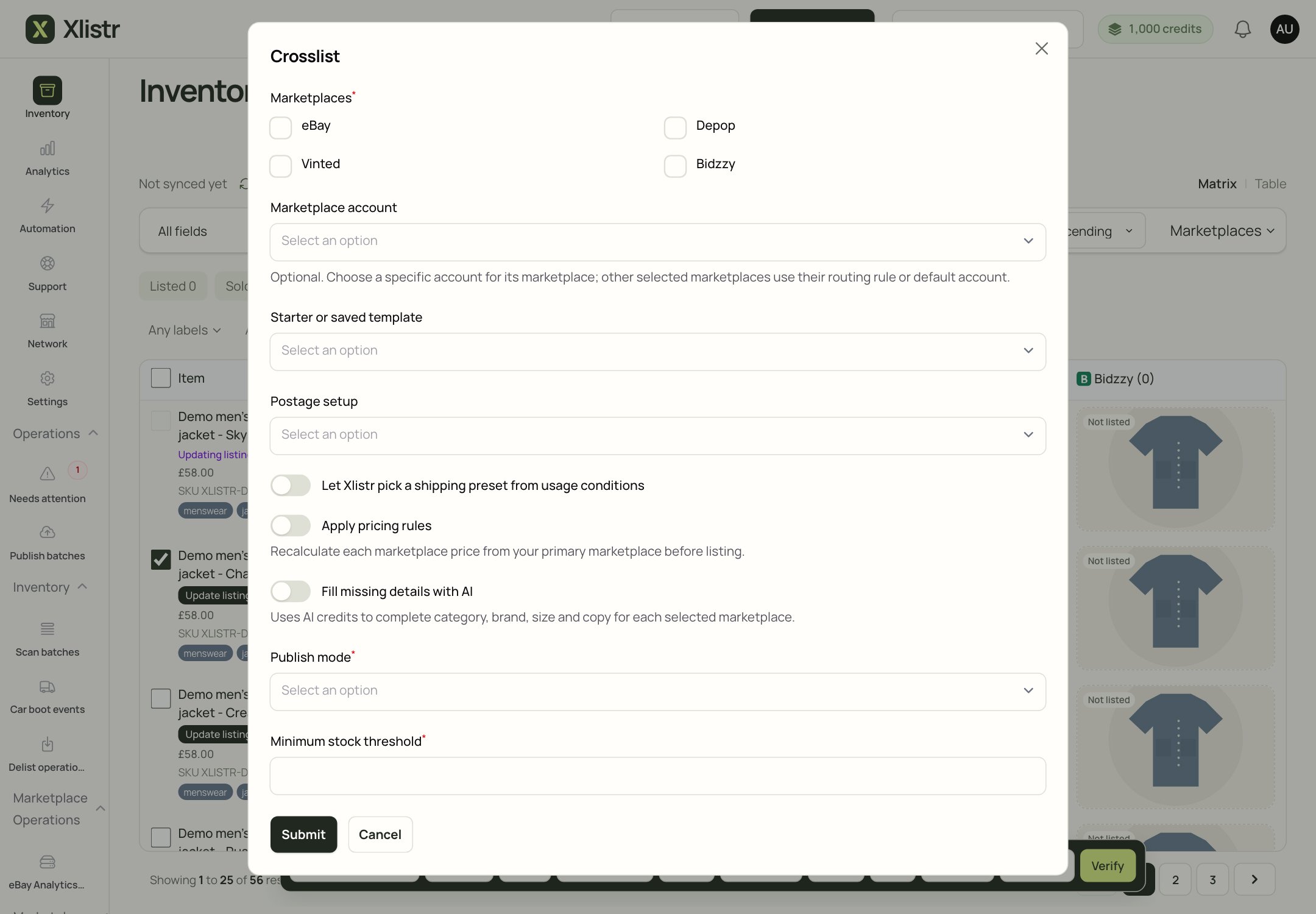
The Crosslist window. Choose the marketplaces, an optional template, postage setup and publish mode for the selected items.
1
Select the items
Open Inventory. Tick the checkbox next to each item you want to list. Start with a small batch while you learn the flow.
2
Click Crosslist
The bulk action bar appears at the bottom of the screen. Click Crosslist.
3
Choose the marketplaces
Tick the marketplaces you want to use. If you have more than one account on a marketplace, choose the account or let the routing rule decide.
4
Choose a template or postage setup
Apply a saved template if it fits. Otherwise choose a postage profile and let Xlistr use the item details you already have.
5
Choose the publish mode
You can usually save drafts, publish now, or schedule. Choose the slowest option while you are learning, then check the results.
6
Review the batch
After the batch starts, open Publish batches to see completed, waiting and failed actions. Fix the cause of a failure before retrying only the affected item.
Scheduling
Scheduling lets you choose when a listing or batch should start. It is useful when:- you want a listing to go live at a sensible time of day;
- you are preparing a batch in the evening for the next morning;
- you want to spread listings out instead of publishing everything at once.
Publish batches
Open Publish batches from the left-hand menu to see the batches Xlistr has queued. A batch can contain many item and marketplace actions. The page shows: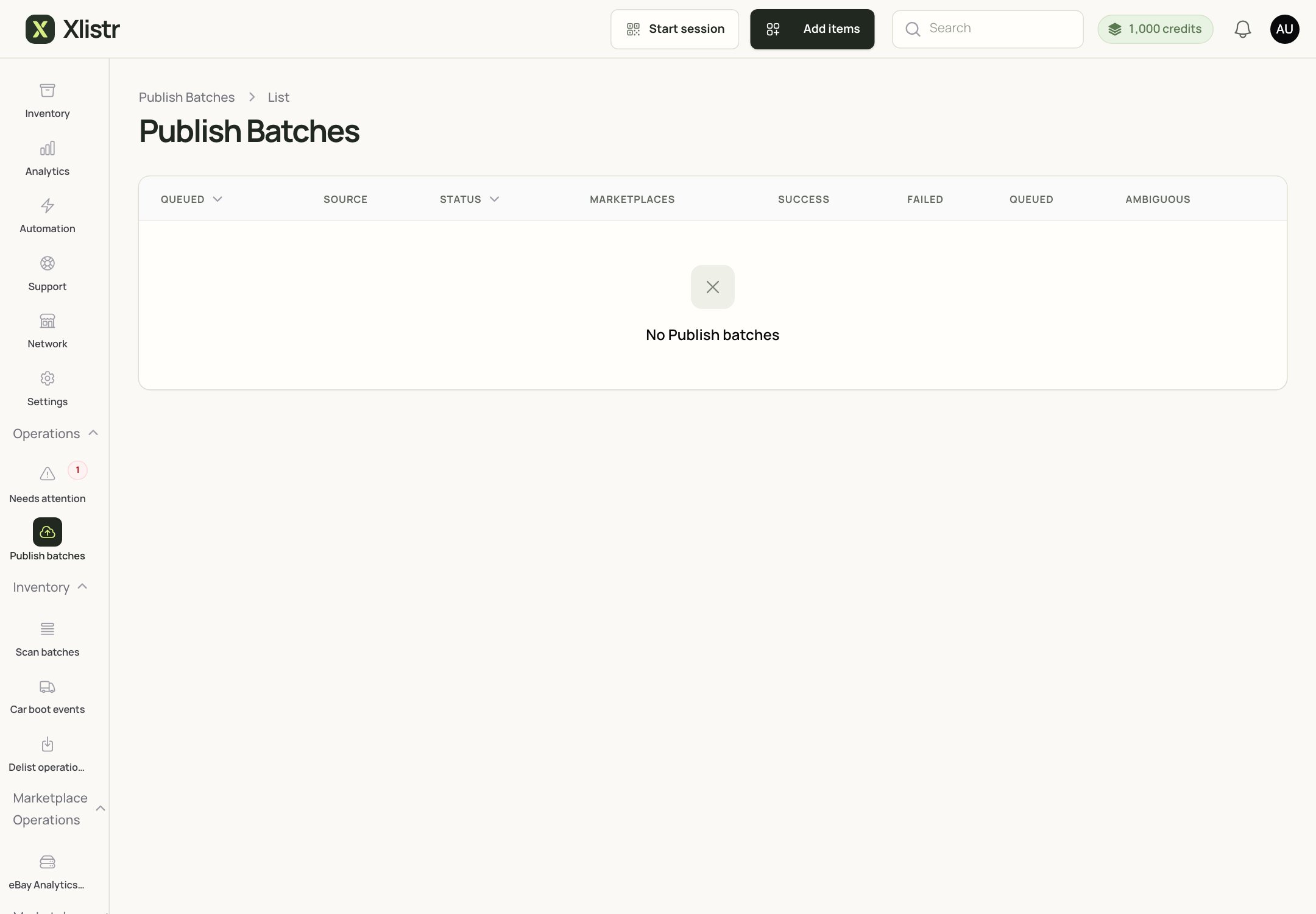
The Publish Batches page. When you have queued work, each batch appears here with its success, failure and pending counts.
- the source of the batch;
- the marketplaces involved;
- how many actions succeeded;
- how many failed;
- how many are still queued;
- how many are ambiguous.
eBay description layouts
If HTML description templates are enabled for a connected eBay account, you can choose an account default or build a reusable layout. See eBay description templates for setup, preview and safety details.Common problems
The batch is stuck at queued
The batch is stuck at queued
Check the marketplace connection first. If the shop uses the extension, open Chrome and check the extension. If the connection is healthy, open an affected item and read the exact status.
Only one item in the batch failed
Only one item in the batch failed
Retry only that item. Do not rerun the whole batch; the successful items may already be live.
The template filled in the wrong category
The template filled in the wrong category
Templates are defaults, not guarantees. Open the affected listing, change the category, and check the item specifics again.
I scheduled a batch for the wrong time
I scheduled a batch for the wrong time
Open the scheduled item or batch and change the time if the option is available. If it has already started, check the status before making changes.
A scheduled item published twice
A scheduled item published twice
Check the marketplace first. If there are two live listings, end the duplicate. Then check whether the item has two marketplace listings in Xlistr and merge or remove the extra one.
Next steps
Shipping and listing details
Build the postage profiles your templates will reuse.
Background actions
Understand what queued, processing, failed and ambiguous mean.
eBay description templates
Build a reusable HTML layout for eBay descriptions.
Fix listing errors
Work through the exact error message on the item.