

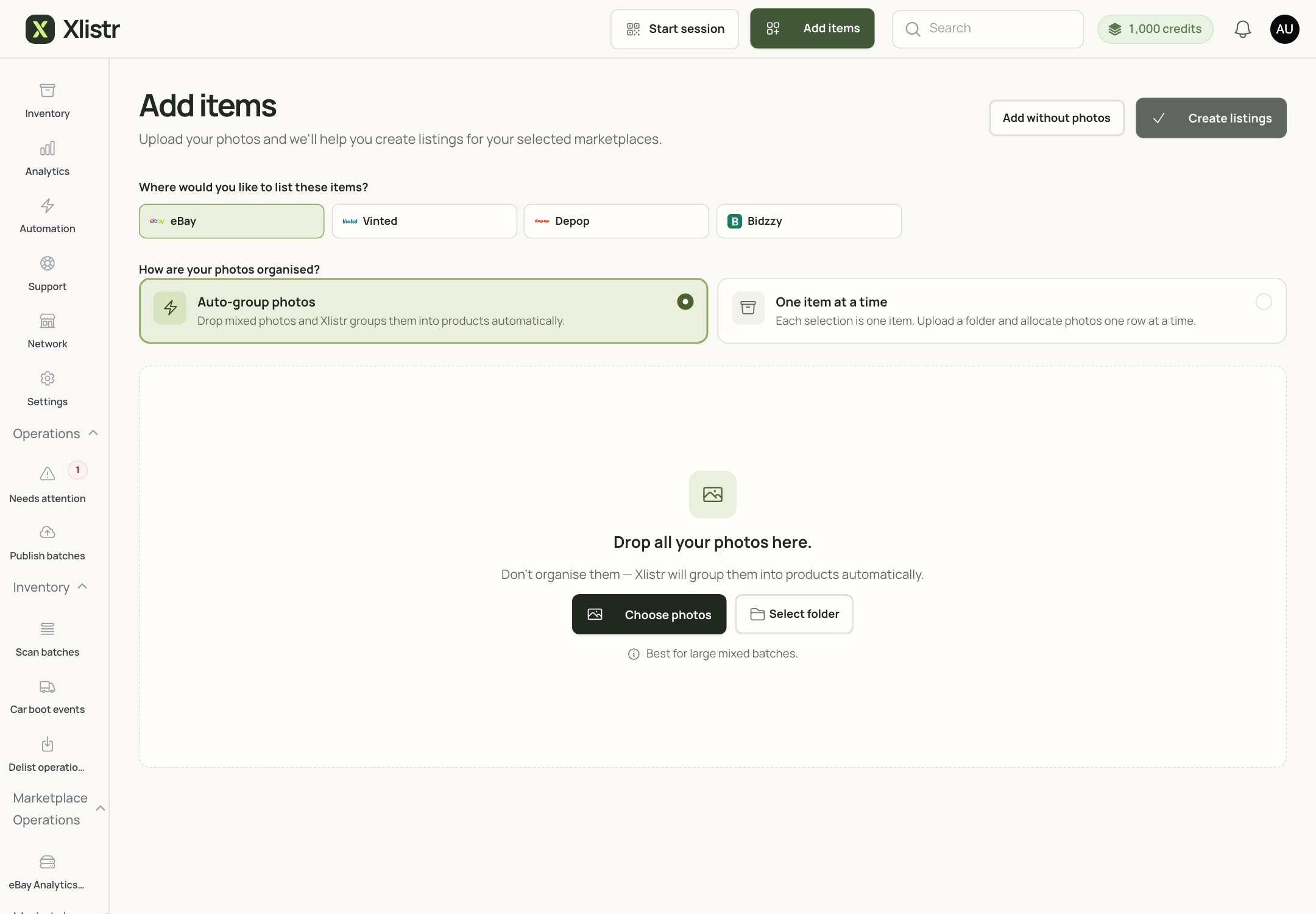
The Add items screen. Choose Auto-group photos for a batch or One item at a time for more control.
Choose how to add photos
If you are new, start with One item at a time. It is slower, but you can see exactly what Xlistr is doing.
A simple photo checklist
- Front — the whole item, in focus.
- Back — show the shape and any marks.
- Label — brand, size and care label.
- Flaws — close-ups of wear, marks, missing buttons or scratches.
- Details — zips, soles, hallmarks, pockets or anything a buyer would ask about.
- Measurements — a tape measure in the photo helps, but write the numbers in the description too.
Photo quality rules that save time
- Keep the item in focus.
- Show the true colour. Do not use a heavy filter.
- Do not hide flaws. A returned item costs more than a lower price.
- Use the same order for every item: front, back, label, flaws, details.
- Check the marketplace’s image limit before uploading a huge set.
AI listing help
If AI listing help is available on your plan, Xlistr can draft a title and description from your photos and item details. AI is a first draft, not a final answer. It can:- suggest a title;
- write a description;
- suggest a category;
- help with keywords.
- whether the item is genuine;
- the exact measurements;
- whether there is a hidden flaw;
- whether the brand or size is correct.
Review AI text in four passes
- Facts — brand, size, colour, material, condition. Are they true?
- Flaws — does the description mention the wear you can see?
- Measurements — are they present and correct?
- Tone — does it sound like a real person, or a robot? Rewrite anything that feels off.
AI credits
AI generation may use credits, depending on your plan. The credit balance is shown in the top bar and in Settings > Account > AI credits.- Generating text does not publish a listing.
- A failed generation may still use credits. Check the result before generating again.
- You can list without AI. It is optional.
Marketplace limits
Each marketplace has its own limits for:- title length;
- description length;
- number of photos;
- image size;
- prohibited words or claims.
Common problems
My photos are in the wrong order
My photos are in the wrong order
Open the item and reorder the photos. The first photo is usually the one buyers see in search results.
Auto-group put two items together
Auto-group put two items together
Split the group or move the photos into the correct item. Check the item titles before publishing; a mixed group will produce a confusing listing.
The AI description mentions something I did not say
The AI description mentions something I did not say
Remove it. AI can infer things that are not true. Treat every sentence as a claim you have to stand behind.
The marketplace rejected my image
The marketplace rejected my image
Check the file type, size and dimensions. Some marketplaces reject very large images or images with certain formats. Resize the image and try again.
I ran out of AI credits
I ran out of AI credits
You can still write the listing yourself. Buy more credits from the top bar or Settings > Account if you want to keep using AI.
Next steps
Publish an item
Use your photos and description on a real listing.
Inventory hub
Find the item later and check its listing status.
Shipping and listing details
Complete the fields the marketplace needs.
Fix listing errors
Work through image, field and connection errors.