

Car boot events
A car boot event is an in-person selling event. You can record which items you took, which ones sold, how the buyer paid, and which ones came home with you. This keeps your online stock accurate. If a jacket sells at a car boot, you do not want it to stay live on eBay.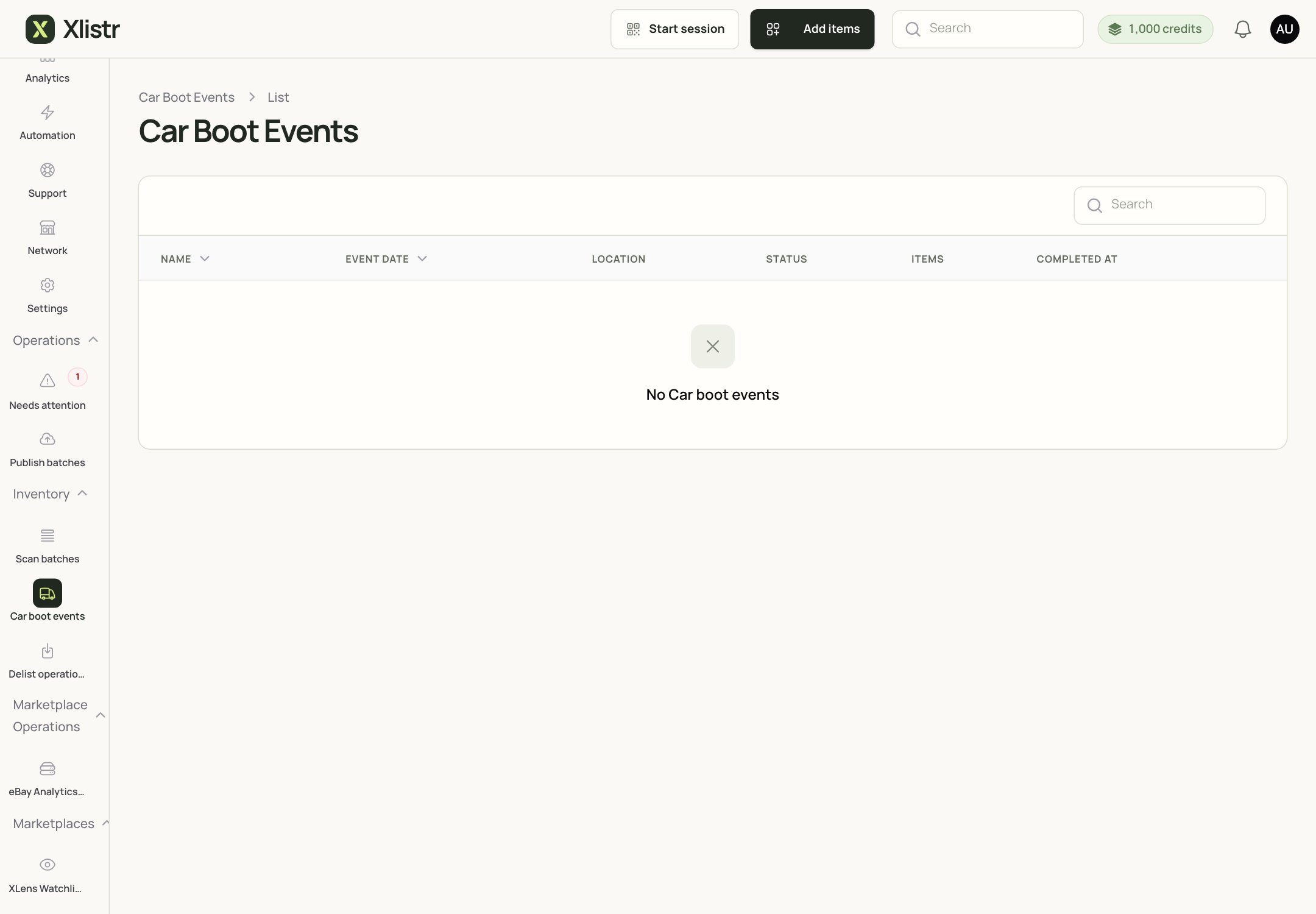
The Car Boot Events page. When you create an event, it appears here with its date, location, status and item count.
Create a car boot event
- Open Operations > Car boot events.
- Click Create or New event.
- Give the event a name, date and location.
- Add the items you are taking.
- Save the event.
During the event
- Open the event on your phone or laptop.
- Mark each item as sold when it sells.
- Record the amount and payment method.
- If an item does not sell, mark it as returned or unsold.
After the event
- Complete the event.
- Check the items that sold. Their inventory quantity should be updated.
- Check the items that did not sell. They should still be available.
- Delist or relist the online listings if needed.
- Review the event summary.
Scan batches
A scan batch is a group of QR label scans. You can use it to:- move stock between locations;
- check what is in a box or bin;
- delist items in bulk;
- find items that need attention;
- keep a record of a stocktake.
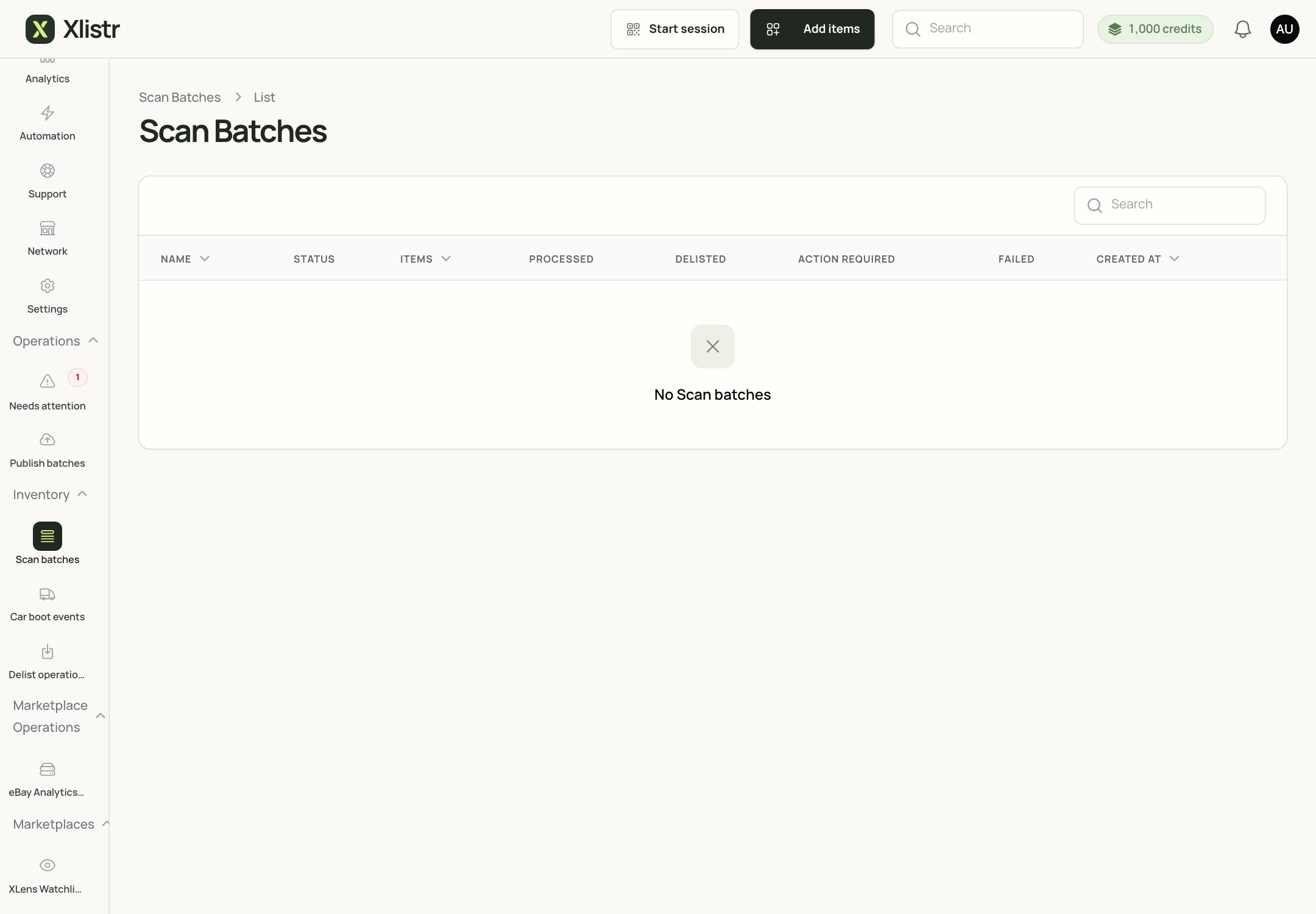
The Scan Batches page. Each batch shows its status, item count and any items that need attention.
Before you scan
- Make sure the items have QR labels.
- Print the labels if you have not already.
- Use a phone or scanner that can read the QR code.
- Check that you are in the right workspace.
Create a scan batch
- Open Inventory > Scan batches.
- Click Create or New scan batch.
- Choose what the batch is for, such as a location move or a stocktake.
- Scan the first item.
- Add each item to the batch.
- Review the list before you process it.
- Process the batch.
After you scan
- Check the processed count.
- Check any items that need attention.
- Retry only the failed items.
- Confirm the stock locations and listing statuses.
QR labels
QR labels give each item a scannable code. You can print a label, stick it on the item or its storage box, and scan it later.- Use labels for items that move between locations.
- Use them for stocktakes and car boot events.
- Replace a label if it is damaged or unreadable.
- Do not stick a label over the brand or size label.
Common problems
The QR code will not scan
The QR code will not scan
Check the lighting and the distance. Clean the label if it is dirty. If the label is damaged, print a replacement. Make sure the scanner is focused on the code, not the whole label.
The item is not in the scan batch
The item is not in the scan batch
Check that the label belongs to the right workspace and item. If the label is old, replace it. If the item was deleted, the label will not resolve.
A car boot item sold but the online listing is still live
A car boot item sold but the online listing is still live
Delist the online listing manually. Then check the item’s quantity and the auto-delist settings. An offline sale may not trigger the same follow-up as a marketplace sale.
An item came home unsold
An item came home unsold
Mark it as returned or unsold in the event. Check that its online listing is still live and its quantity is correct.
The scan batch is stuck
The scan batch is stuck
Check the batch status and any item-level errors. Retry only the failed items. If the batch is processing, wait before retrying.
Next steps
Inventory hub
Find items and check their listing status.
Variants and shared stock
Keep the quantity accurate across channels.
Auto-delist and restock
Understand what happens after a sale.
Support
Send the details if a scan or event goes wrong.