

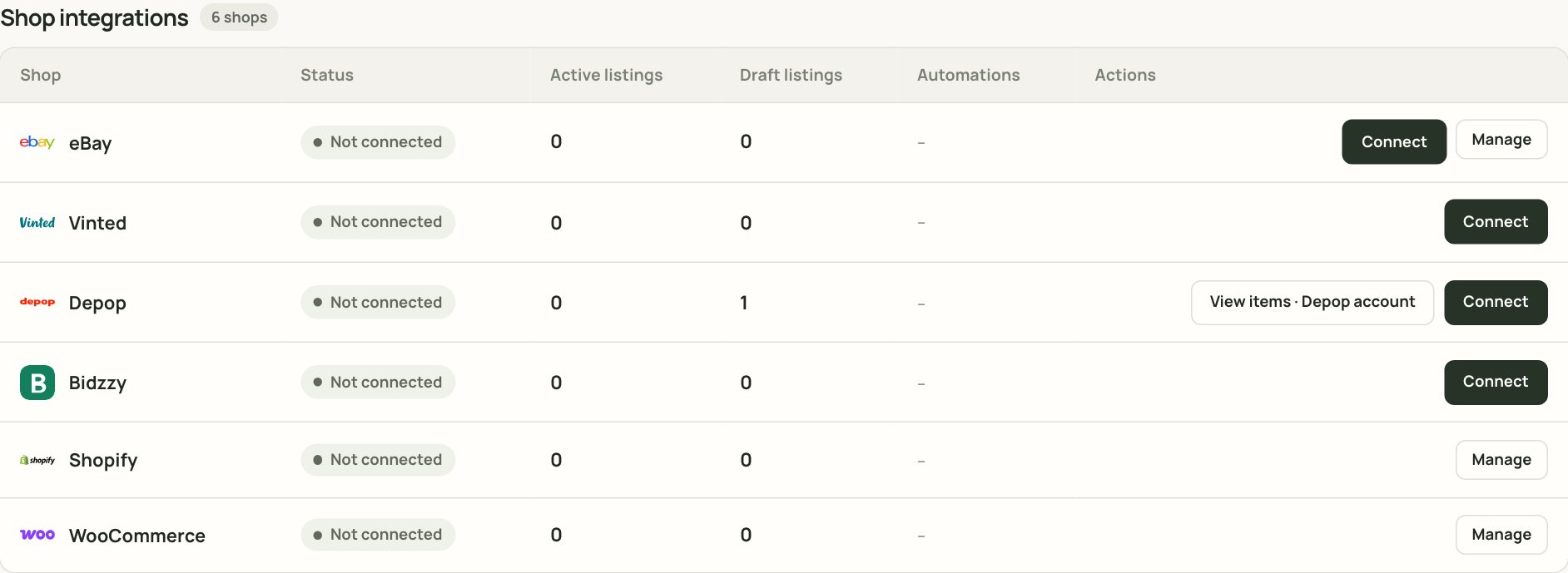
Shop integrations inside Automation. Each shop shows its connection status and the action you can take.
Before you connect
- Have the seller account details to hand. You may need to sign in to the marketplace.
- Use the account you actually sell from. If you have more than one account on the same marketplace, connect the main one first.
- For Vinted, Depop and other browser-session shops, use Chrome and keep the extension signed in.
- If you are importing existing listings, start with a small batch. It is easier to check five listings than five hundred.
Step by step
1
Open Shop integrations
In the left-hand menu, click Automation. Scroll to Shop integrations. You will see the shops available to your workspace.
2
Choose the shop
Find the shop you want to connect, such as eBay, Vinted, Depop, Bidzzy, Shopify or WooCommerce.
3
Click Connect
For most shops, click Connect. For a store connection such as Shopify or WooCommerce, click Manage if that is the button shown. Then follow the method for that shop. Some shops open an official sign-in window; others ask you to install or open the Xlistr Chrome extension.
4
Finish the sign-in on the marketplace
Sign in with the seller account you use. If the marketplace asks for a security check, complete it yourself. Xlistr support will never ask for your password or two-factor code.
5
Come back and check the status
Return to Shop integrations. The shop should say Connected. If it says Needs reconnecting, repeat the sign-in before you queue listing work.
6
Import existing listings if you need them
If you already sell on that marketplace, you can bring those listings into Xlistr. Start with a small import and check the matched item, photos, title, price, SKU and quantity.
What the statuses mean
A connection can expire without you doing anything wrong. Marketplaces regularly ask for a fresh sign-in. Reconnecting is normal maintenance, not a sign that your account is broken.
How each kind of shop connects
Importing existing listings
If you already have listings on a marketplace, importing them lets Xlistr manage the stock and link them to inventory items. Do it slowly.- Choose the marketplace in Shop integrations.
- Find the import or sync option shown for that shop.
- Start with a small batch, or a single page of listings.
- Open each imported item and check:
- the title and photos;
- the price and SKU;
- the quantity;
- whether it is linked to the correct inventory item.
- Only import the rest when the small batch looks right.
If a connection stops working
The shop says 'Needs reconnecting'
The shop says 'Needs reconnecting'
Open Automation > Shop integrations, find the shop and click Reconnect. Complete the marketplace sign-in. If the marketplace asks for a code, enter it yourself.
The shop uses the extension and says 'Extension inactive'
The shop uses the extension and says 'Extension inactive'
Open Chrome. Check that the Xlistr extension is installed and enabled. Sign in to the marketplace in the same Chrome profile. Open the extension and check its status. Then return to Xlistr.
I connected the wrong seller account
I connected the wrong seller account
Disconnect the shop in Shop integrations, then reconnect with the correct account. Check that any imported listings belong to the right account before you continue.
The marketplace asks for a captcha or security check
The marketplace asks for a captcha or security check
Complete the check yourself in the marketplace window. Xlistr cannot and should not solve it for you. Once the marketplace is happy, return to Xlistr and retry the action.
The connection works but a listing still fails
The connection works but a listing still fails
The connection is only one part of publishing. A missing category, image, postage profile or item specific can still block a listing. Read the exact message on the item and use the error guide.
Next steps
Install the Chrome extension
Set up the browser bridge for Vinted, Depop and other session-based shops.
Publish your first item
Add one item and send it to the marketplace you just connected.
Understand the marketplace list
See what each channel can do and what happens after a sale.
Fix connection errors
Work through expired sessions, captchas and missing-field errors.