

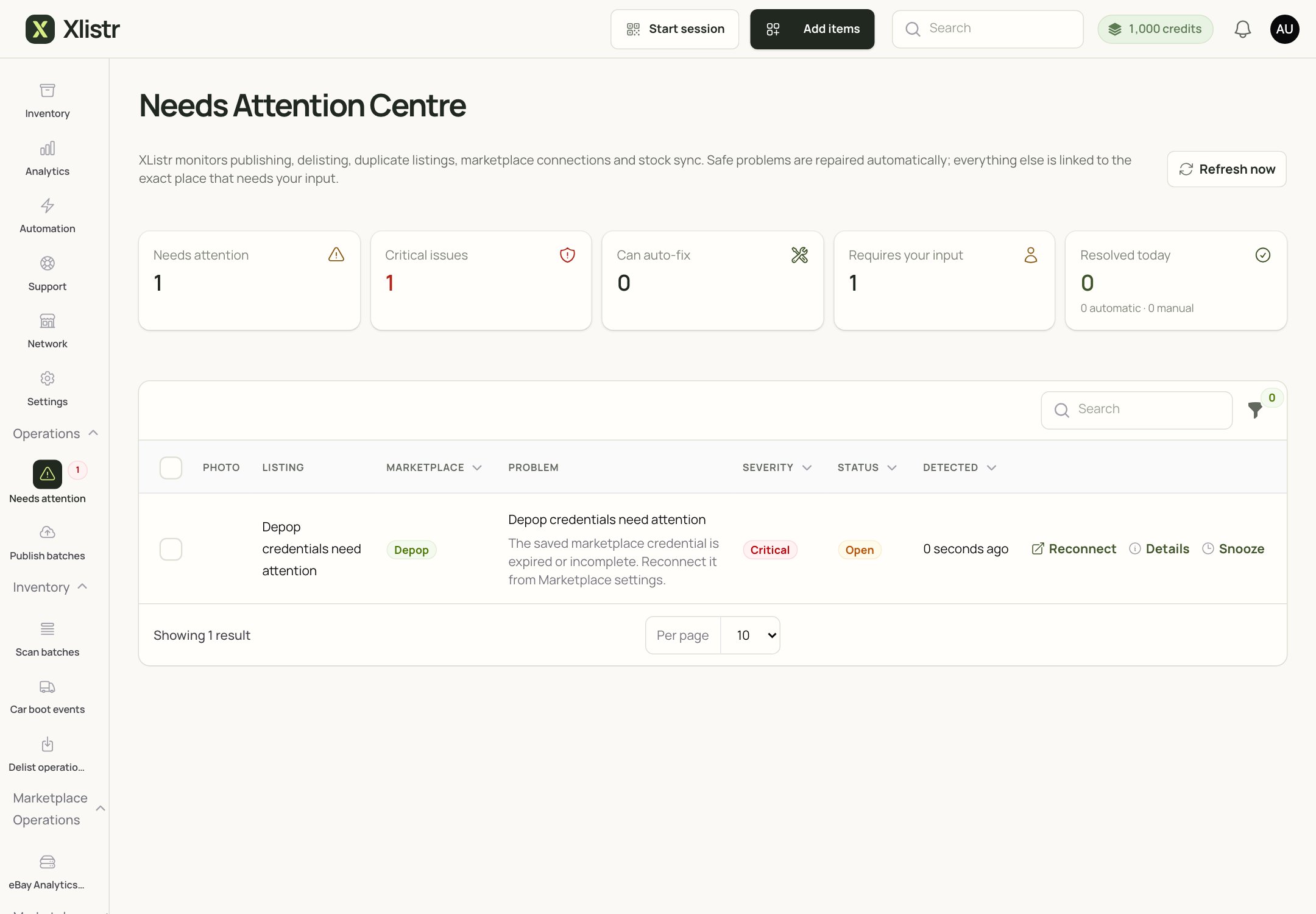
The Needs Attention Centre. It collects the issues Xlistr could not fix safely on its own.
The statuses, in plain English
Read the status before you retry
1
Open the affected item
Find the action on the inventory record and read its exact status and error. A general notification may not include the cause.
2
Check the connection and listing details
Reconnect an expired account or restore the browser session. If the error names a missing field, image, category or parcel detail, fix that value on the listing before retrying.
3
Confirm the result before retrying
Check the marketplace if the result is uncertain. A timeout can happen after a listing was created, so retrying immediately may create a duplicate.
4
Retry only the affected action
If one item in a batch failed, retry that item. Do not rerun the whole batch; the successful items may already be live.
What “waiting for the extension” means
Vinted, Depop and some other shops need a signed-in Chrome session. If Chrome is closed, the extension is disabled, or the marketplace session expired, the action waits. To restore it:- Open Chrome.
- Check that the Xlistr extension is enabled and pinned.
- Sign in to the marketplace in the same Chrome profile.
- Open the Xlistr extension and check its status.
- Return to Xlistr and check whether the action resumes.
Scheduled actions
Scheduled work waits until its chosen time. It still needs the relevant connection to be available. If the action remains waiting after its scheduled time:- check the item’s status;
- check the marketplace connection;
- check Chrome and the extension if the shop uses one;
- check whether the marketplace is having an outage.
When to check the marketplace yourself
Check the marketplace before retrying when:- the action timed out;
- the status is Ambiguous;
- the status says Synced but you cannot see the listing;
- you are about to retry a publish, relist or sell-similar action;
- a buyer says they cannot see the listing.
Common problems
The action has been queued for a long time
The action has been queued for a long time
Check the marketplace connection. If the shop uses the extension, open Chrome and check the extension. If the connection is healthy, wait a little longer and refresh the item. If it still does not move, contact support with the item name and the exact status.
The action failed but I cannot see why
The action failed but I cannot see why
Open the item and read the full message. The notification may be shorter than the error on the record. If the message is empty, take a screenshot and contact support.
The action says completed but the marketplace shows nothing
The action says completed but the marketplace shows nothing
Search the marketplace by the exact title. The listing may be under review, in a different category, or not yet indexed. If it is definitely missing, retry after checking the listing details.
A batch partly succeeded
A batch partly succeeded
Open Publish batches and review the counts. Fix only the failed items. Do not rerun the whole batch.
I retried and now there are two listings
I retried and now there are two listings
End the duplicate on the marketplace. Then check the item in Xlistr and remove or merge the extra marketplace listing. Read the duplicate guidance before retrying again.
Next steps
Fix marketplace errors
Work through the exact error message on the item.
Chrome extension
Restore a waiting browser session.
Auto-delist and restock
Understand the follow-up actions after a sale.
Templates and batches
Review a scheduled or bulk batch safely.