

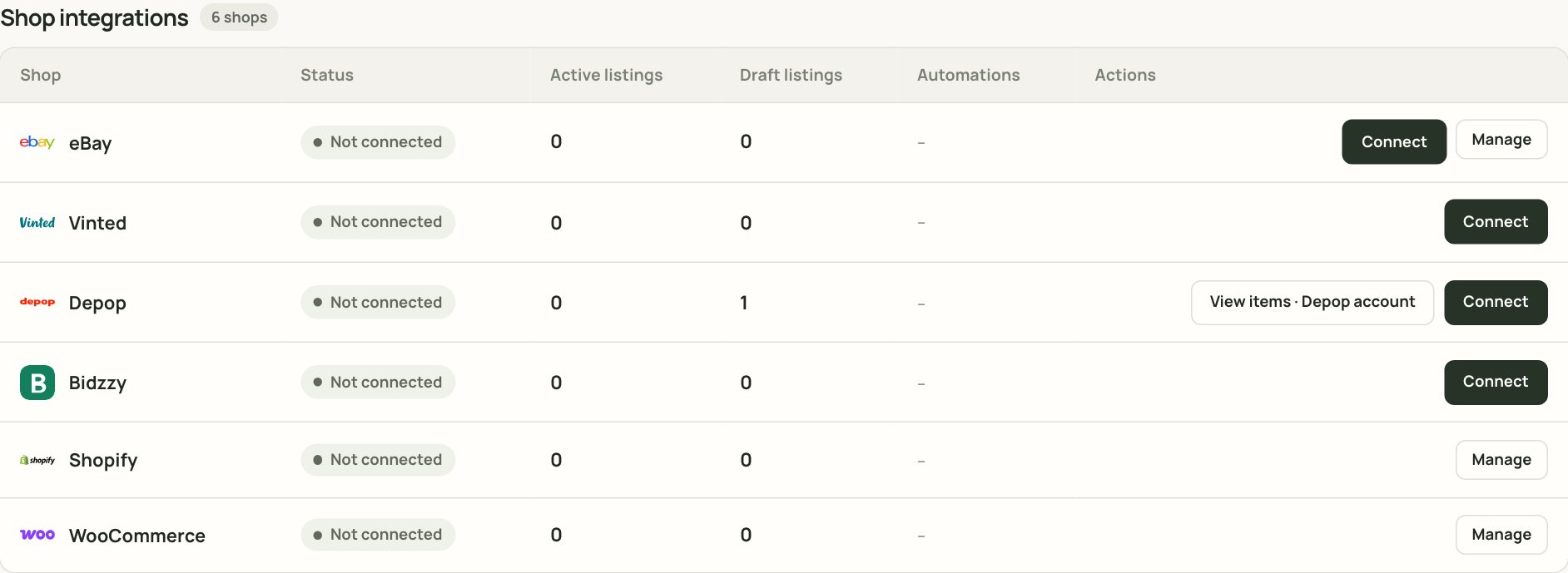
The Shop integrations table. Shops that use the extension will show an install or connect step when you click Connect.
What is a Chrome profile?
A Chrome profile is the little person icon in the top-right corner of Chrome. It keeps your bookmarks, passwords, extensions and website logins separate from other people who use the same computer. The extension and the marketplace login must be in the same profile. This is the most common reason the extension says it cannot find your session. If you are not sure which profile you are using, click the person icon in Chrome. The profile with the tick or the coloured circle is the one you are using now.Before you start
- Use a desktop or laptop computer. The extension is a Chrome extension, not a phone app.
- Use the Chrome profile you use for selling.
- Have your marketplace login ready.
- Keep Chrome open while Xlistr is doing browser-based work.
Step by step
1
Open the extension setup from Xlistr
In Xlistr, open Automation > Shop integrations. Find the shop that uses the extension, such as Vinted or Depop. Click Connect and follow the installation link or instructions shown for your workspace.
2
Add the extension to Chrome
Chrome will ask you to add the extension. Click Add to Chrome, then Add extension if Chrome asks again. If the button is greyed out, your browser or network may be managed by an organisation; ask your workspace owner for help.
3
Pin the extension
Click the puzzle-piece icon in the Chrome toolbar. Find Xlistr in the list and click the pin icon next to it. The Xlistr logo will stay visible in the toolbar, which makes it much easier to check.
4
Sign in to the marketplace in the same profile
Open the marketplace website, such as Vinted or Depop, in the same Chrome profile. Sign in with the seller account you want Xlistr to use. If the marketplace asks for a code or captcha, complete it yourself.
5
Open the extension and connect
Click the Xlistr icon in the Chrome toolbar. Find the marketplace in the popup and click Connect or Sync if it is shown. The status should change from “Checking” to a connected state.
6
Confirm in Xlistr
Return to Automation > Shop integrations. The shop should now say Connected. If it still says Needs reconnecting, repeat the marketplace sign-in and check that you are in the same Chrome profile.
How to check it is working
Open the Xlistr extension from the Chrome toolbar. You should see the marketplace listed with a healthy status. If it says “Problem detected” or “Unable to check authorisation”, the extension cannot see a signed-in session. Then check Xlistr:- Open Automation > Shop integrations.
- Find the shop.
- The status should be Connected.
- If you have a draft or a waiting action, open the item and check whether it has resumed.
Keep browser work available
When an action needs the extension, Xlistr can leave it waiting until Chrome reconnects. This is deliberate: it is safer than guessing that the marketplace finished the job. To keep things moving:- Keep Chrome open on the computer where the extension is installed.
- Keep the Xlistr extension enabled.
- Stay signed in to the marketplace in that profile.
- Do not switch to a different Chrome profile halfway through a batch.
- If you use a laptop, keep it awake while a batch is running.
Fix “Waiting for the extension”
Chrome is closed
Chrome is closed
Open Chrome and wait a few seconds. The extension should reconnect automatically. Return to Xlistr and check the item’s status before retrying.
The extension is disabled
The extension is disabled
Go to
chrome://extensions, find Xlistr and make sure the toggle is on. If Chrome says the extension is unresponsive, click Reload once. Do not remove and reinstall unless the guide asks you to.You are in the wrong Chrome profile
You are in the wrong Chrome profile
Click the person icon in the top-right of Chrome and switch to the profile where you installed Xlistr. Then open the marketplace and sign in again if needed.
The marketplace session expired
The marketplace session expired
Open the marketplace in the same profile and sign in again. Complete any security check yourself. Then open the Xlistr extension and check the status.
The action still will not resume
The action still will not resume
Open the affected item in Inventory and read the exact status. If it says Failed, fix the cause shown in the message before retrying. If it says Waiting for the extension, check Chrome and the extension again. Do not retry a whole batch when only one item is stuck.
It worked before and stopped after a Chrome update
It worked before and stopped after a Chrome update
Chrome sometimes disables extensions after an update. Open
chrome://extensions, check that Xlistr is still enabled, and pin it again if the toolbar icon disappeared.Next steps
Connect your marketplaces
See the full connection flow and what each status means.
Publish your first item
Use the extension to send your first Vinted or Depop listing.
Fix marketplace errors
Work through session, captcha and missing-field problems.
Understand background actions
Learn what queued, waiting, failed and completed actually mean.