

- Postage details that do not match the parcel.
- Marketplace fields that are missing or wrong.
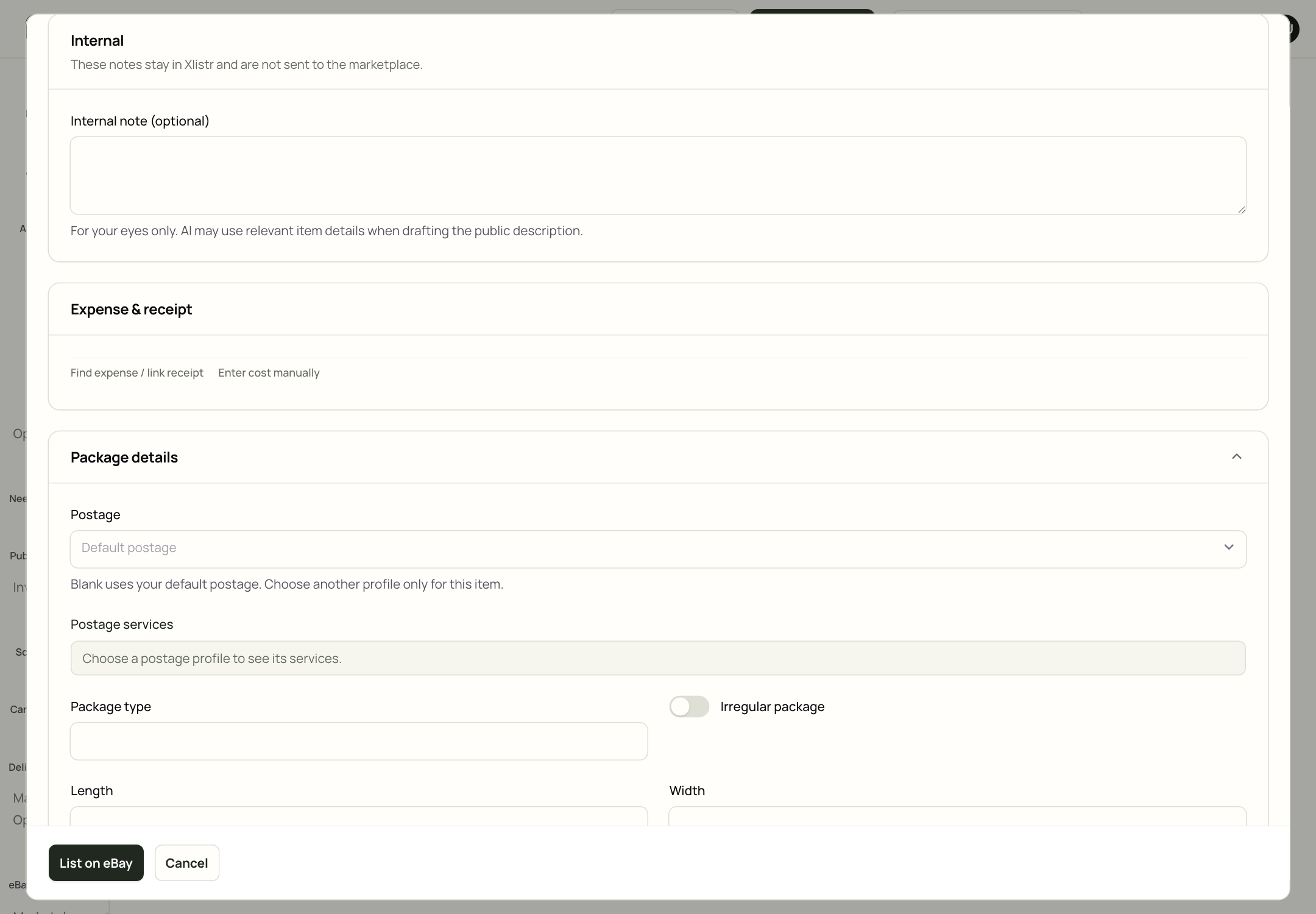
Package details inside the listing review. A saved postage profile fills in the services and parcel details for you.
What is a shipping profile?
A shipping profile is a saved parcel recipe. It stores the postage services, package type, size and weight you use for a particular kind of item. Examples:- Small accessories — a large letter or small parcel, light weight.
- Standard clothing — a parcel bag, medium weight.
- Heavy coats or boots — a larger box, heavier weight.
- Fragile items — a box with extra packaging and a tracked service.
Before you create a profile
You need:- a tape measure or ruler;
- a kitchen scale or postage scale;
- the packaging you will actually use;
- the postage services you are willing to offer.
Create a shipping profile
- Open Settings.
- Click the Listing tab.
- Find Shipping profiles.
- Click Create or New shipping profile.
- Give the profile a name you will recognise, such as “Standard clothing” or “Small accessories”.
- Add the package type, dimensions, weight and the services you want to offer.
- Save the profile.
Choose a profile on a listing
- Open the item and go to the marketplace listing.
- Scroll to Package details.
- Choose the profile from the Postage menu.
- Check the services and the parcel details.
- If this parcel is different, change the details for this listing only.
The fields marketplaces ask for
Every marketplace has its own form. These are the fields you will see most often.Shared details do not always fill marketplace fields. The inventory item may have a brand and size, but a marketplace can still ask for a colour, material or style that it does not have. Complete those on the listing.
What “ready to publish” means
A listing is ready when:- the category is chosen;
- every required item specific is filled;
- at least one image is present;
- the price is greater than zero;
- the postage profile and service are set;
- the marketplace account is connected.
Common problems
The category will not load
The category will not load
The marketplace category list may be temporarily unavailable, or the account connection may have expired. Reconnect the shop, then reopen the listing. If the category still will not load, choose a different but still accurate category and try again.
The marketplace says a field is required but I cannot see it
The marketplace says a field is required but I cannot see it
The field may be inside a collapsed section, or it may only appear after you choose a category. Choose the category first, then scroll through the item specifics.
The postage price looks wrong
The postage price looks wrong
Check the packed weight and dimensions first. Then check the service. A small difference in weight can move a parcel into a different price band.
I do not know the measurements
I do not know the measurements
Measure the item flat, then add a little room for the packaging. If you truly cannot measure it, say so in the description and use a service with enough cover.
The buyer paid but the postage cost more
The buyer paid but the postage cost more
Do not cancel without talking to the buyer. Update your profile for next time, and consider whether the service you offered was realistic for the parcel.
Next steps
Publish an item
Put the postage profile to work on a real listing.
Templates and bulk listing
Reuse listing defaults and prepare several items together.
eBay description templates
Add a reusable HTML layout to eBay descriptions when you are ready.
Fix listing errors
Work through the exact error message on the item.