

Two ways to start
You can start with photos or with a blank form.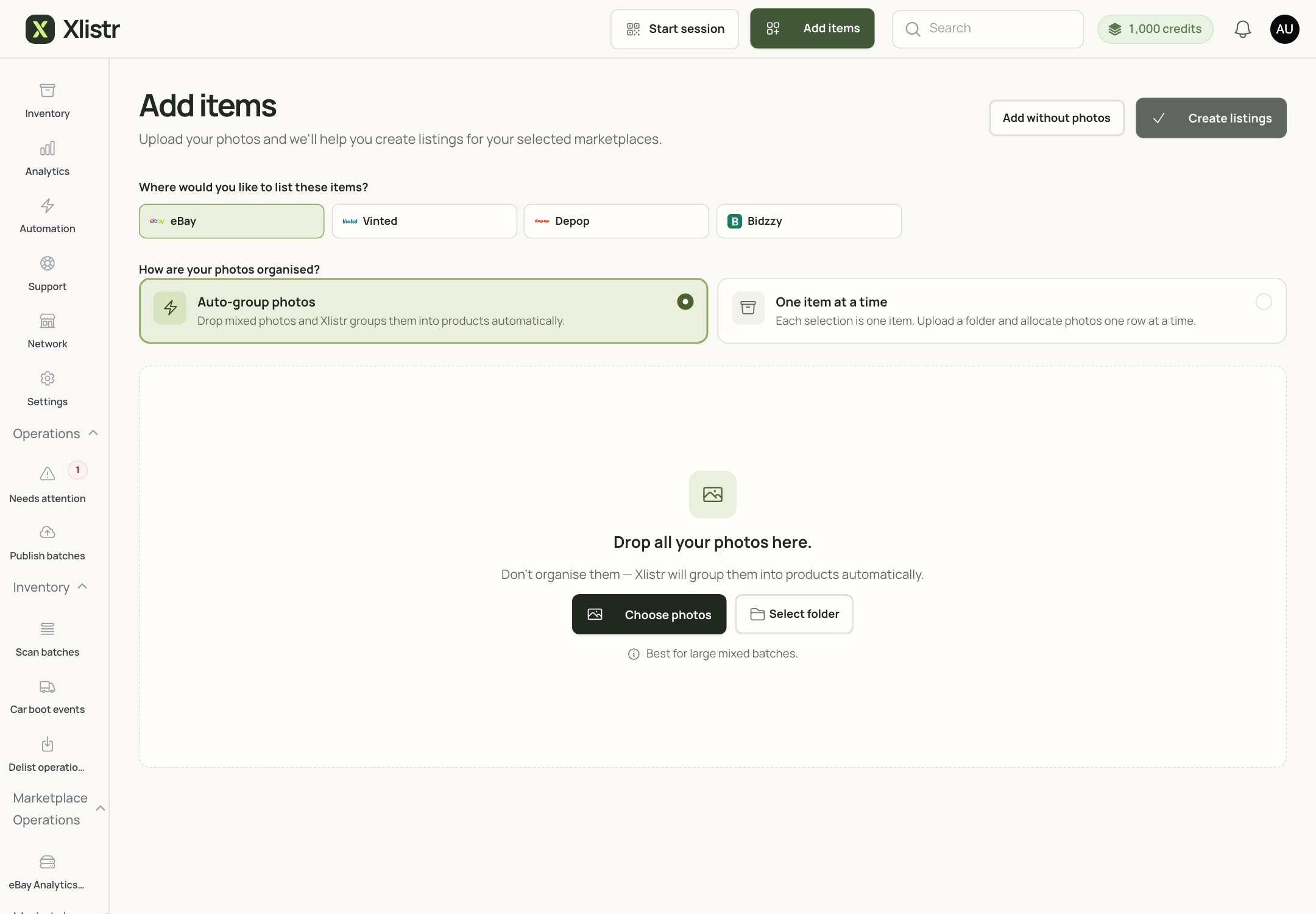
The Add items screen. Choose the marketplaces at the top, then choose how your photos are organised.
- Auto-group photos — drop a mixed pile of photos and Xlistr tries to group them into items. Best for a batch of similar things.
- One item at a time — each selection is one item. Best when you want to check every photo and detail.
- Add without photos — starts a blank item form. You can add photos later.
The shared details
These details belong to the inventory item, not to one marketplace. They are reused wherever you list the item.The inventory item owns the stock. The marketplace listings draw from that quantity. Do not create a separate quantity for each marketplace.
The marketplace listing
A marketplace listing is the advert for one selling site. It can have a different title, category, description, photos, price and postage from the same inventory item. If the item is already in Inventory but has no marketplace listing yet, select it and use Crosslist, or start from Add items and choose the marketplace there. Once a listing exists, open it from the item’s marketplace tile to review it.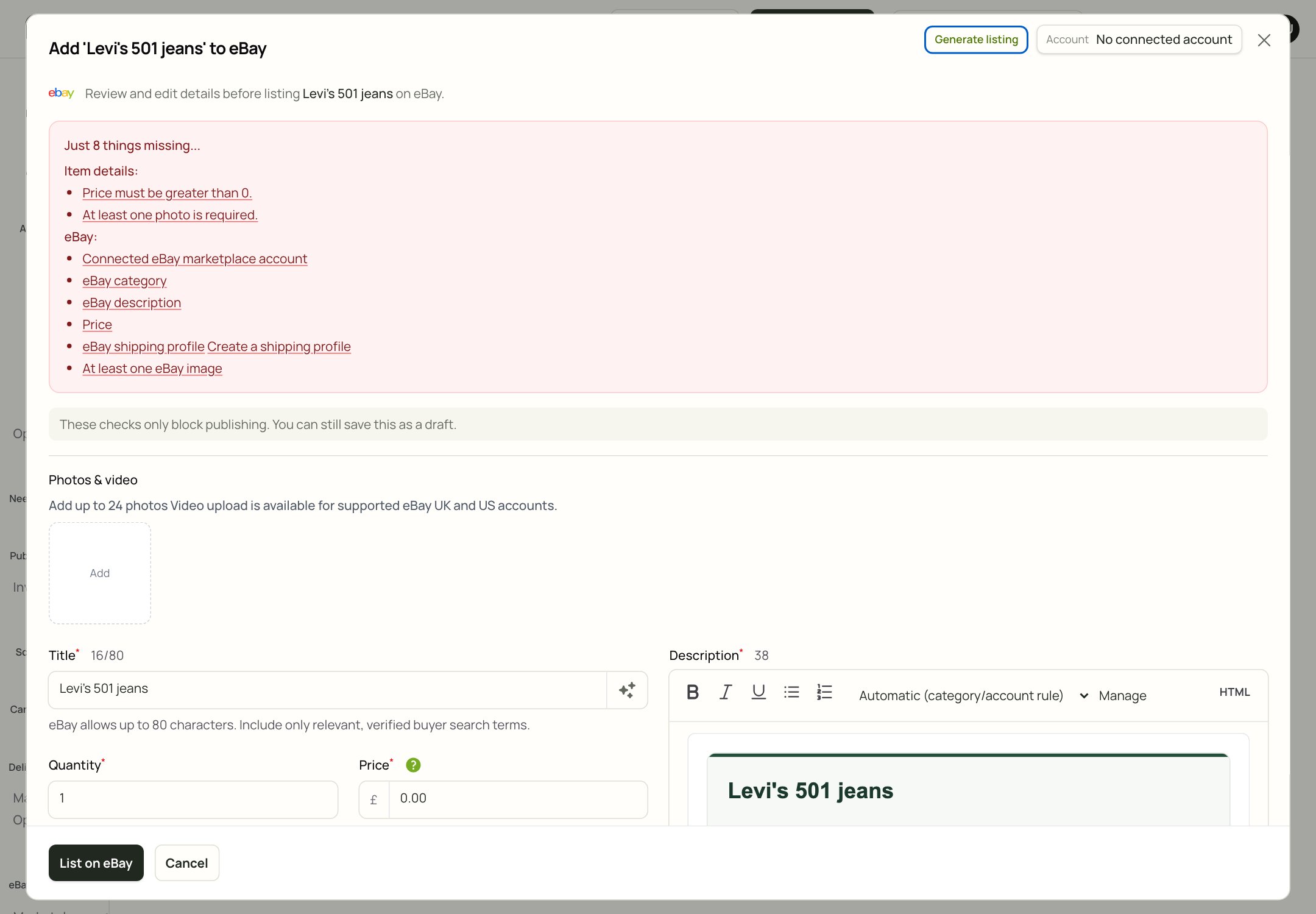
The listing review screen for eBay. The checklist at the top tells you exactly what would stop publishing.
What the checklist means
The red box lists anything that would stop the listing from going live. Common examples:- the price is zero or blank;
- there is no photo;
- the marketplace account is not connected;
- the category is missing;
- the description is missing;
- there is no postage profile;
- the marketplace needs at least one image.
Title and description
- Put the most important words first.
- Do not add keywords that are not true just to get views.
- Check the marketplace’s character limit. eBay, for example, allows up to 80 characters for a title.
- Write the description as if you were explaining the item to a friend. Mention the flaws before the buyer finds them.
Category and item specifics
The category controls which extra questions the marketplace asks. If you choose a broad category, you may miss required details. Choose the most specific category that fits, then complete the fields it shows. Item specifics are the details buyers use to filter, such as colour, material, style, department or shoe size. They must come from the item, not from a guess.Photos
- Use clear, well-lit photos.
- Show the whole item first, then close-ups.
- Include the label, any flaws and the measurements.
- Reorder the photos if the marketplace shows a different one first.
- Check the marketplace’s image limit before uploading a huge set.
Postage and package details
Scroll to Package details in the listing review.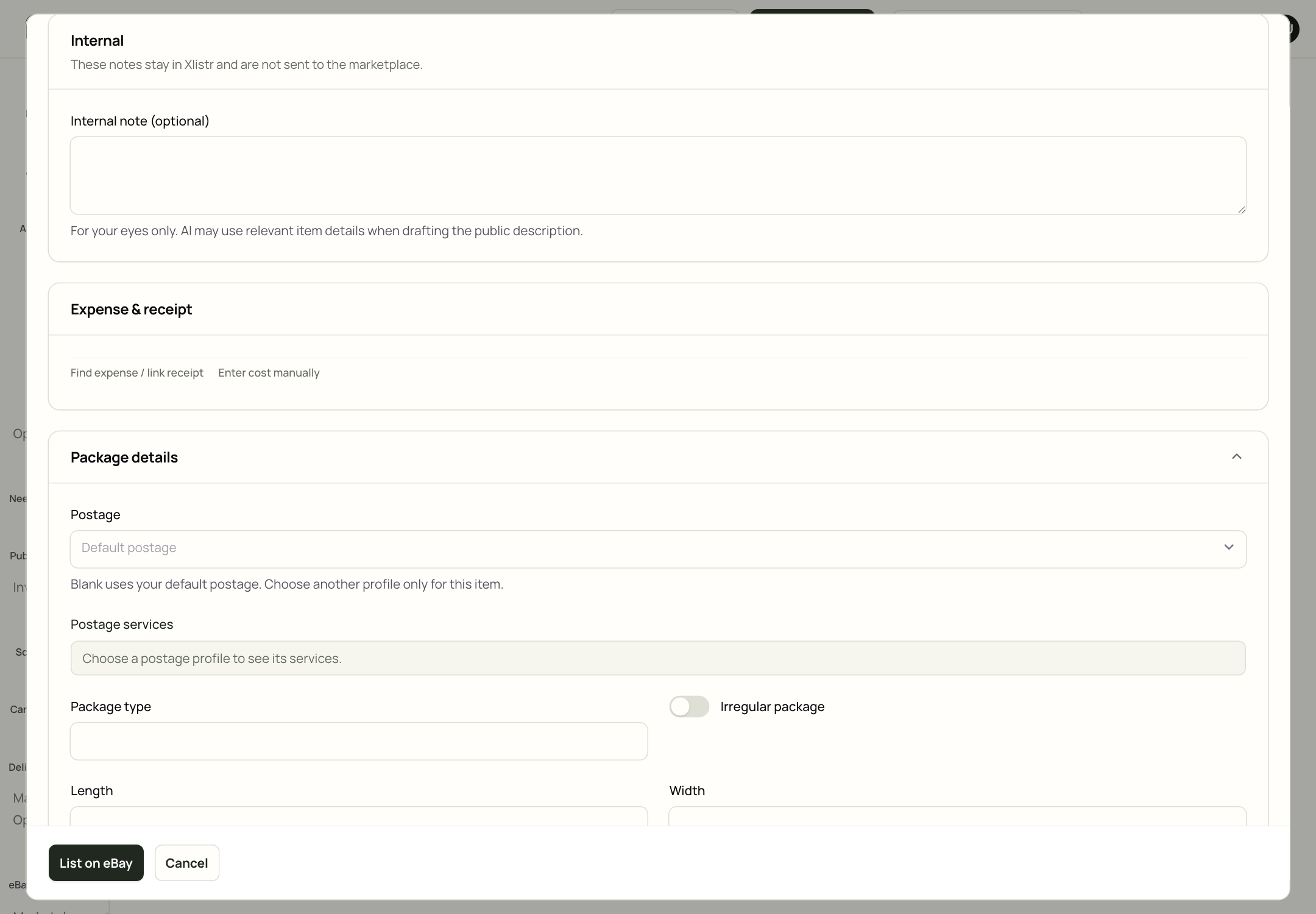
Package details. A saved postage profile fills in the services and parcel details for you.
- Postage — choose a saved profile or leave it blank to use your default.
- Package type — box, parcel bag, large letter or irregular package.
- Length, width, height and weight — measure the packed parcel.
- Postage services — choose the service you will actually use.
Save, schedule, or publish
What happens after you press Publish
- Xlistr checks the listing details.
- Xlistr sends the request to the marketplace.
- The marketplace accepts, rejects or delays the request.
- Xlistr records the result on the item.
- You check the status and, for important listings, the marketplace itself.
How to check a listing is really live
- Open Inventory.
- Open the item.
- Look at Marketplace Listings.
- Check Publish status and Current sync status.
- Open the marketplace and search for the exact title.
How to edit a live listing
- Open Inventory and find the item.
- Click the marketplace tile, or use the listing menu and choose Edit listing.
- Change the details.
- Save or publish the revision.
A live listing can take a moment to update. If the marketplace is slow, do not keep pressing save. Check the status first.
How to delist an item
Delist asks the marketplace to end or withdraw the listing. It does not delete the inventory item or its history.- To delist one marketplace listing, use the listing’s Delist action.
- To delist every connected listing for an item, open the item and use Delist everywhere.
Common questions
Why can I not publish?
Why can I not publish?
Read the red checklist on the listing review screen. The most common causes are a zero price, no photo, no category, no description, no postage profile or an expired marketplace connection.
Why does it say queued?
Why does it say queued?
Xlistr has accepted the job but the marketplace has not finished it. Wait for the status to change, then check the marketplace before retrying.
Can I list the same item on more than one marketplace?
Can I list the same item on more than one marketplace?
Yes. That is what Xlistr is for. Open the item and add another marketplace listing, or select several items and use Crosslist. The inventory quantity stays shared.
What if the marketplace category is wrong?
What if the marketplace category is wrong?
Change the category on the listing review screen. Then check the item specifics again, because a different category may ask for different details.
What if the buyer pays but the item is already sold elsewhere?
What if the buyer pays but the item is already sold elsewhere?
That is the double-selling problem Xlistr is designed to prevent. Check that auto-delist is configured and that the marketplace connections are healthy. If it happens, delist the other listings immediately and contact the buyer.
Can I change the price after publishing?
Can I change the price after publishing?
Yes, if the marketplace allows revisions. Open the listing, change the price and publish the revision. Check the live listing afterwards.
Can I delete an item?
Can I delete an item?
Deleting removes the Xlistr record and its history. Use Archive if you only want to hide it from your active list. Delisting, archiving and deleting are different actions.
Next steps
Shipping and listing details
Set up postage profiles and complete the fields each marketplace needs.
Templates and bulk listing
Reuse defaults and list several items without repeating yourself.
Background actions
Understand queued, waiting, failed and completed.
Fix listing errors
Work through the exact error message on the item.