

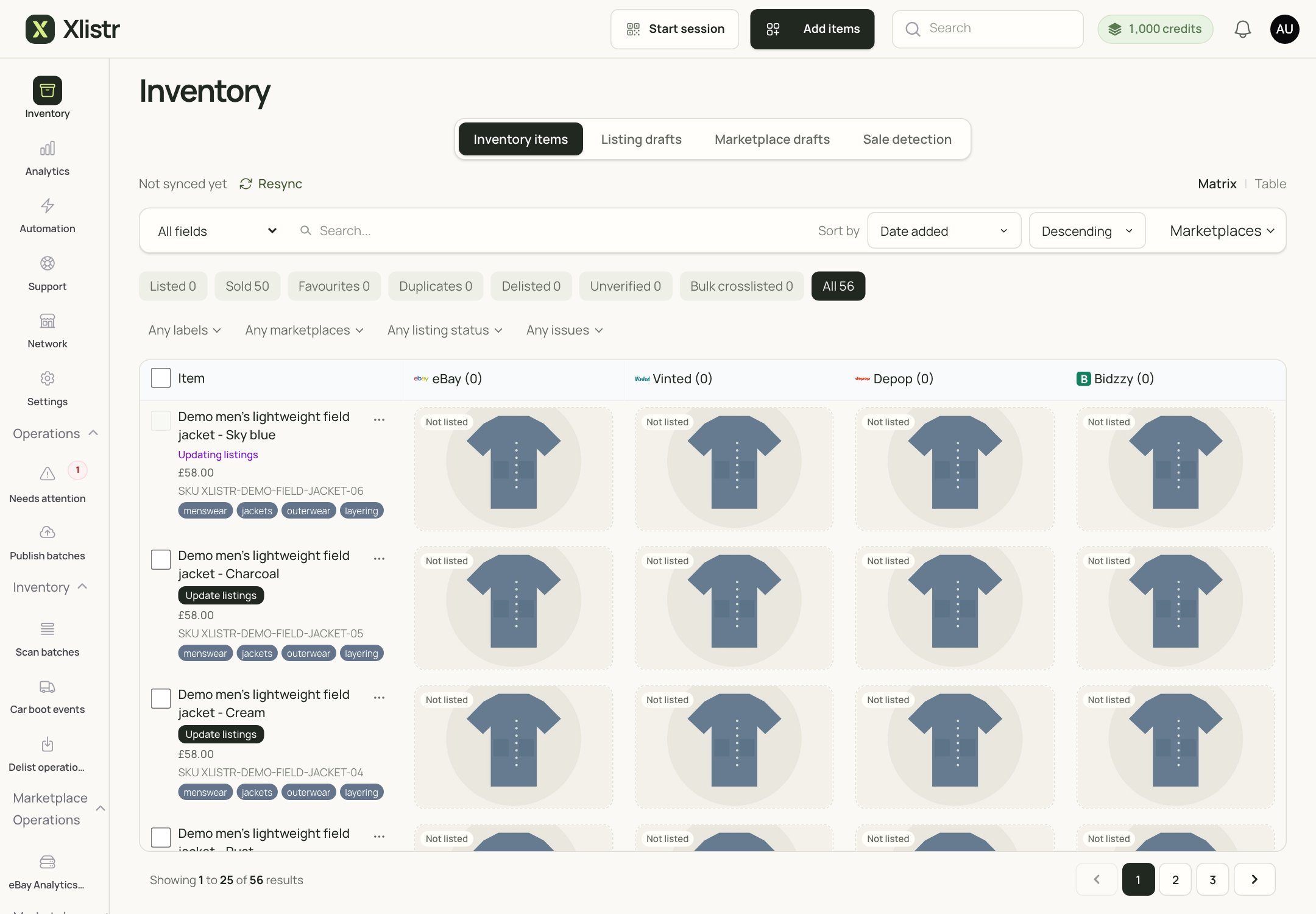
The Inventory matrix. Each row is an item; each marketplace column shows the listing status for that item.
The tabs at the top
If an item seems to have disappeared, check the tab and the filters first. It may be in a draft view, or hidden by a filter.
Matrix view vs Table view
Use the Matrix and Table links on the right.Matrix view
The matrix is the visual view. Each row is an item. The columns show the marketplaces, such as eBay, Vinted, Depop and Bidzzy. Each tile shows the listing status and a thumbnail. Use it when you want to see, at a glance, which items are listed where.Table view
The table is the compact view. It shows one row per item with the title, SKU, physical status, marketplace and stock. Use it when you want to scan a lot of items or select several for a bulk action.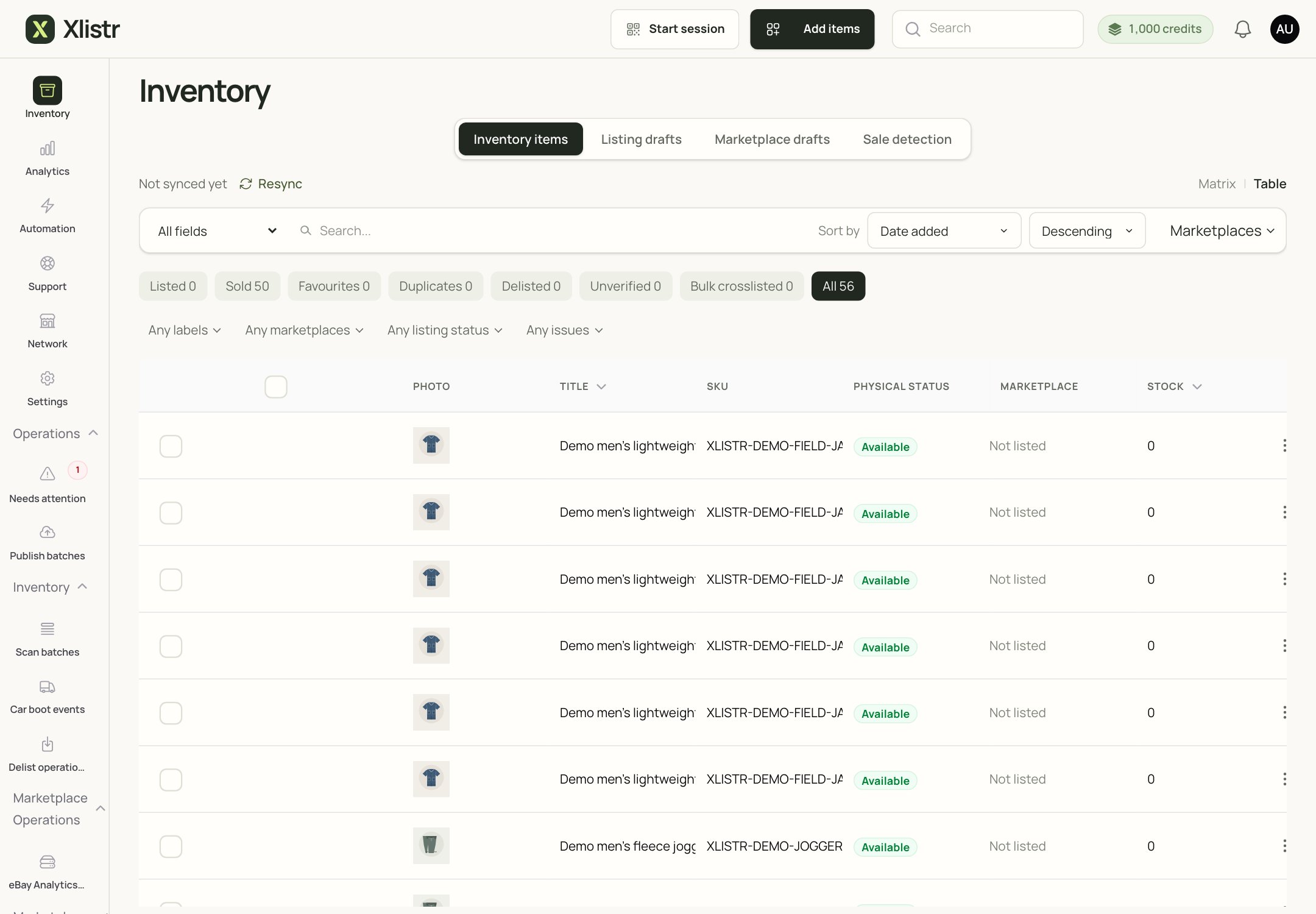
The Inventory table. It is more compact and easier to scan when you have a lot of stock.
Search and filters
At the top of the page you can search and filter.- All fields — search by title, SKU or another field.
- Sort by — date added, item, modified, number of listings, price or sale detected.
- Marketplaces — show only items listed on a particular marketplace.
- Labels — filter by your own tags, such as “menswear” or “jackets”.
- Listing status — draft, live, pending delist, delisted or out of stock.
- Issues — show items with a problem, such as a publishing error or a mismatched quantity.
The item row
Each row gives you a quick summary:- the title and SKU;
- the price;
- the labels;
- the marketplace tiles or icons;
- the stock quantity;
- any issue badge.
The marketplace tiles
Each tile represents one marketplace listing.- Not listed — there is no listing for that marketplace yet.
- Draft — a listing exists but is not live.
- Live — the marketplace has the listing.
- Pending delist — Xlistr has asked the marketplace to end it.
- Delisted — the listing has ended.
- Out of stock — the listing is paused because there is no stock.
- Needs relist — the item has not been relisted within your refresh interval.
Bulk actions
Tick the checkbox next to one or more items to open the bulk action bar at the bottom.Why an item might be hidden
- The current tab is Listing drafts, not Inventory items.
- A filter is set to a marketplace or status that excludes it.
- The item is archived.
- The item is sold and the view hides sold items.
- The search term is too specific.
Next steps
Inventory-first basics
Learn the difference between an item, a listing and a sale.
Variants and shared stock
Understand stock modes, priority and minimum stock.
Photos and AI listings
Improve your photos and review AI-assisted text.
Car boot events and scan batches
Record in-person sales and scan QR labels.
Publish an item
Turn an inventory item into a live listing.